Get started
Interface tour
The screen has three parts: a narrow rail on the left, the conversation in the middle, and the composer at the bottom where you type. The main menu and the chat panel slide in from the left when you need them.
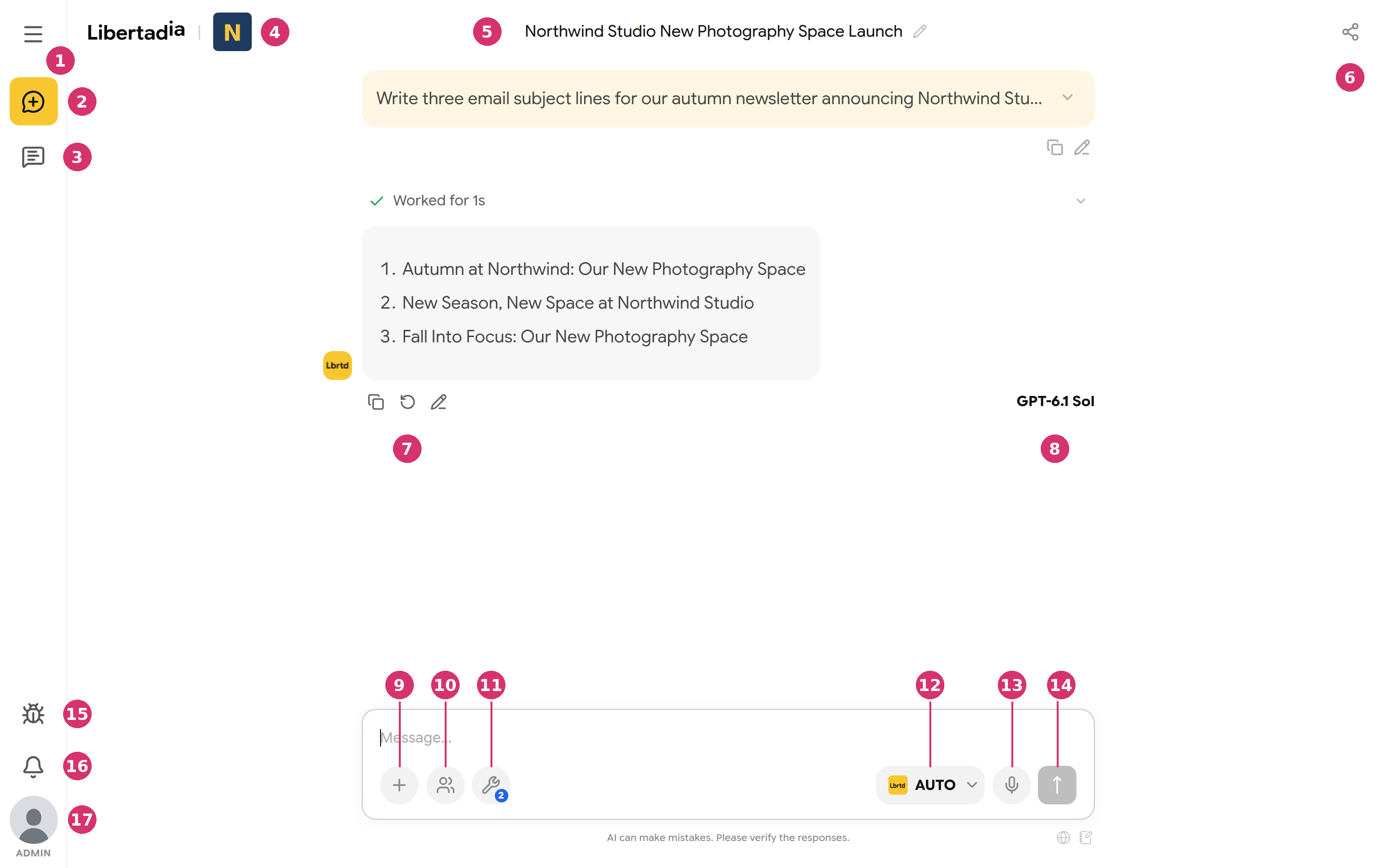
The main screen. Numbers match the table below.
| # | Element | What it does |
|---|---|---|
| 1 | Main menu | Opens the navigation menu with all sections |
| 2 | New chat | Starts a new free-chat conversation |
| 3 | Chat panel | Opens your conversations, agents, documents and chat settings |
| 4 | Workspace | Shows the workspace you are in: your plan badge, or the company logo |
| 5 | Conversation title | Click the pencil to rename the chat |
| 6 | Share | Shares the conversation with people in your company |
| 7 | Message actions | Copy, regenerate, or edit the reply |
| 8 | Model used | The model that wrote this reply |
| 9 | + menu | Create a document, photo, video or audio; start research; upload files |
| 10 | Agents | Pick one of your agents to chat with |
| 11 | Tools | Turn web search, brain search, integrations, file access, subassistants and memory on or off. The badge counts tools that are on |
| 12 | Model picker | Choose AUTO or a specific model |
| 13 | Microphone | Dictate your message |
| 14 | Send | Sends the message |
| 15 | Bug reports | Report a problem to the Libertadia team |
| 16 | Notifications | Generation results, replies to bug reports, announcements and automation runs |
| 17 | Profile | Your account. The label under it shows your company role, for example ADMIN |
Main menu
Click the menu icon (1) to open navigation. The top card shows the current workspace and opens the workspace switcher. The bottom shows your usage or balance and your profile.
| Personal workspace | Company workspace (administrator view) |
|---|---|
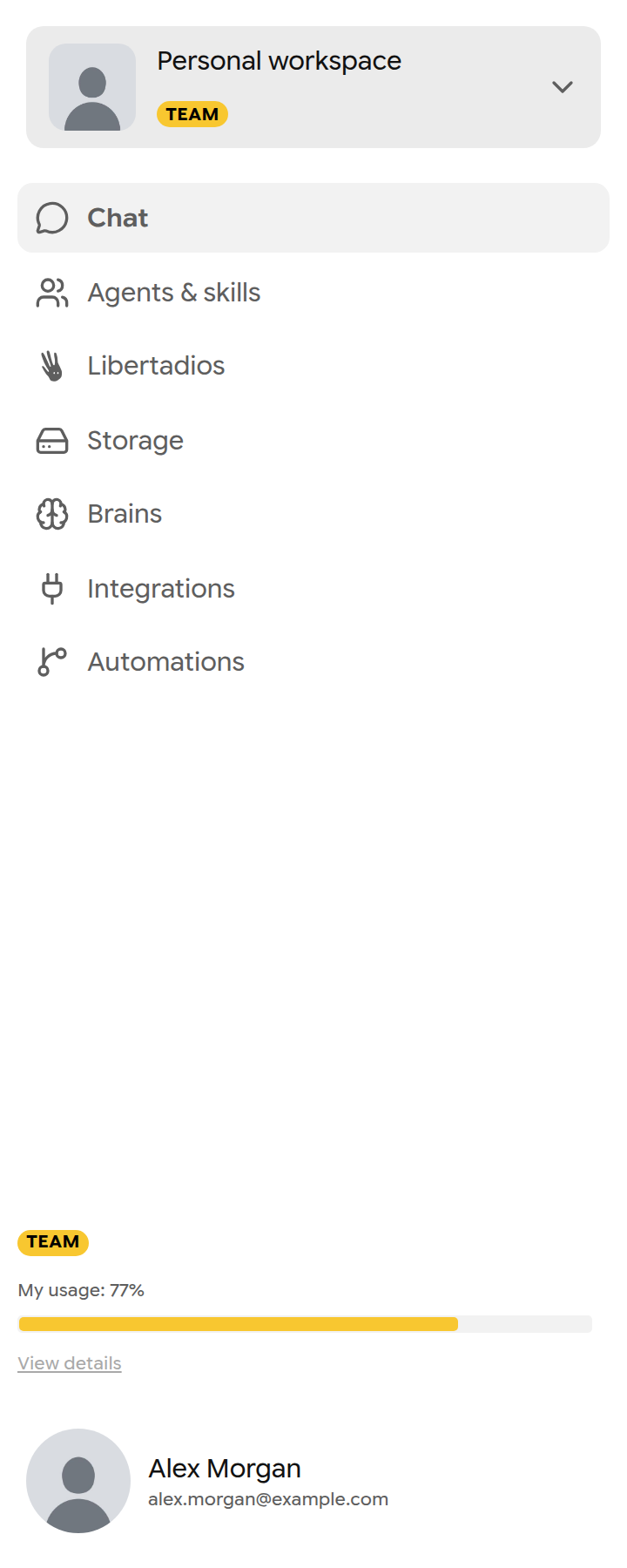 | 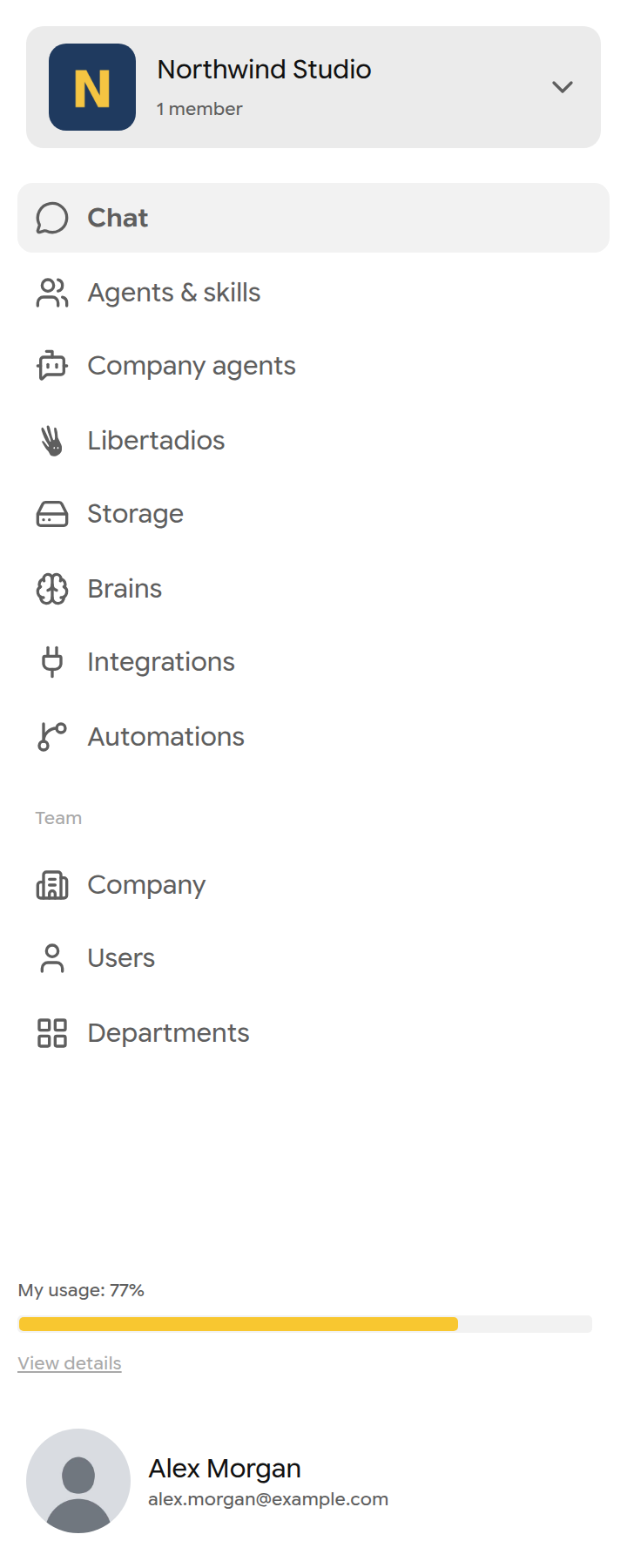 |
The main menu. Company workspaces add Company agents, and administrators also see a Team section.
| Menu item | What you find there |
|---|---|
| Chat | Conversations with models and agents |
| Agents & skills | Your agents and skills |
| Company agents | Agents published in your company (company workspaces only) |
| Libertadios | Ready-made agents curated by Libertadia |
| Storage | Your files (My Drive) and the Recycle Bin |
| Brains | Knowledge bases |
| Integrations | Connected apps |
| Automations | Workflows |
| Team section | Company, Users, Departments, Permissions, Roles, Models (administrators only) |
Note: Items your plan or company does not allow are hidden, or open an upgrade prompt.
Switch workspace
- Open the main menu and click the workspace card at the top.
- Under Workspaces, pick your personal workspace or a company.
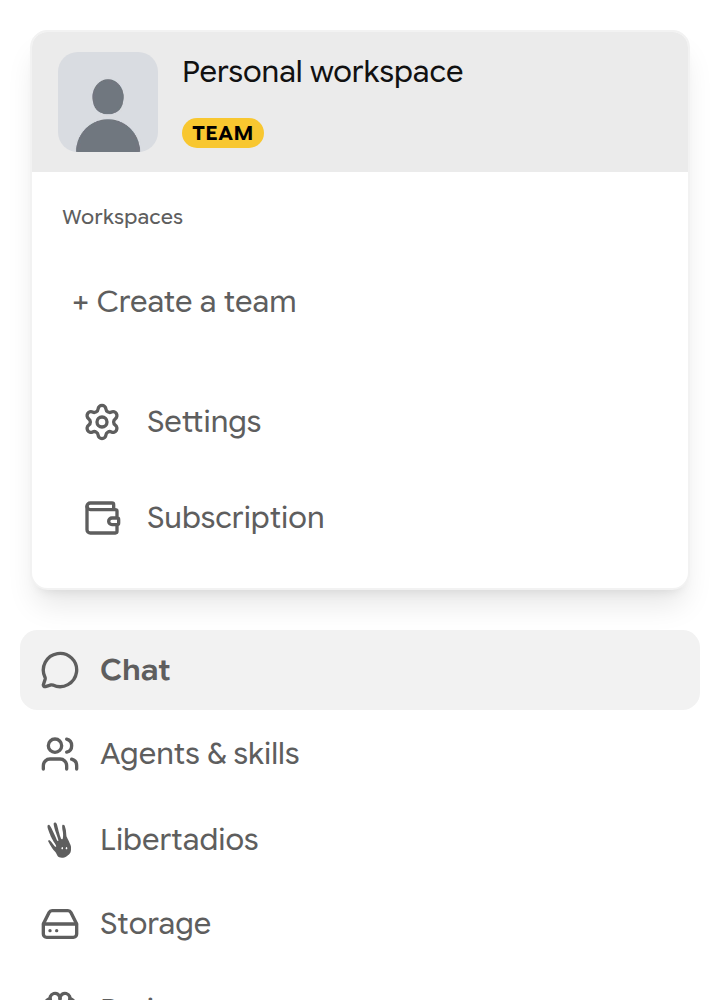
The workspace switcher also links to Settings and Subscription.
On the Demo and Team plans you also see + Create a team. See section 11, Company workspace.
Chat panel
Click the chat panel icon (3) to open four tabs: Chats, Agents, Docs and Settings.
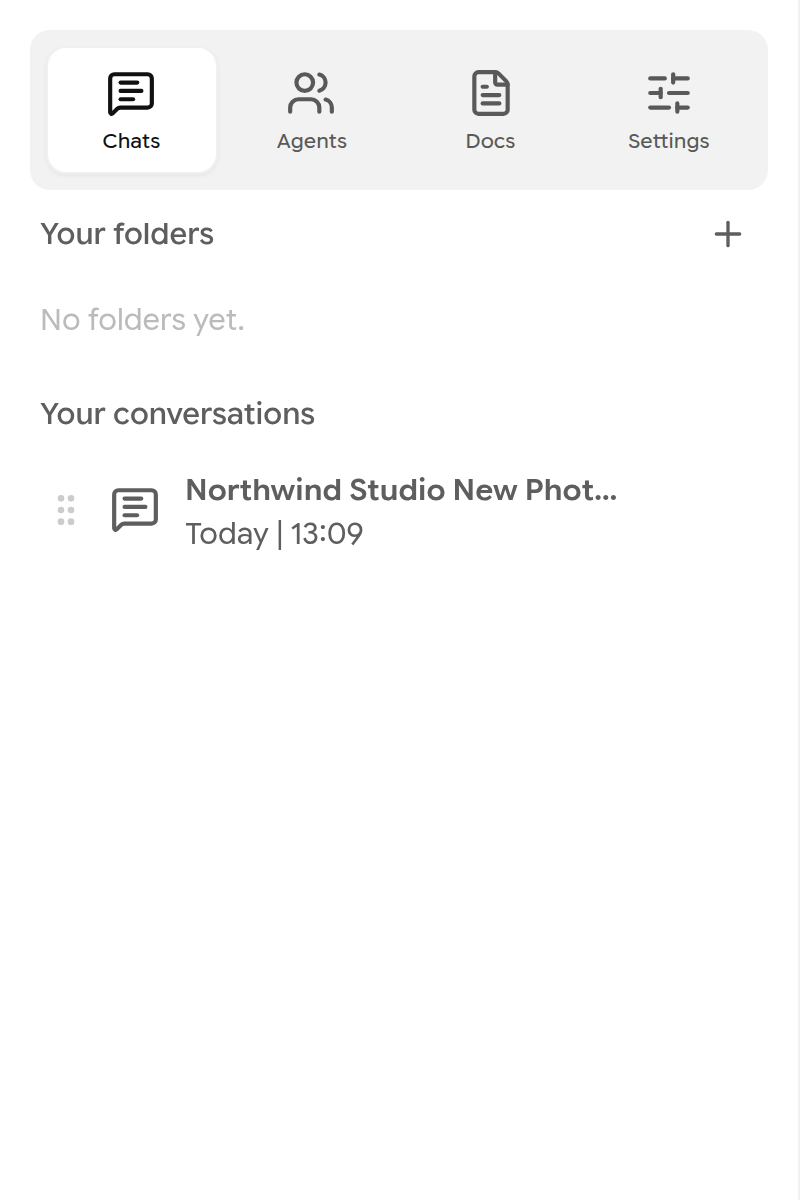
The chat panel lists folders and conversations.
Usage indicator
The bottom of the main menu shows your plan and how much you have used. In a company you may see a percentage of your budget instead of money. Limit reached means you cannot spend more until the limit is raised or the period resets. Click View details to open Usage & Logs.
Phones and tablets
Libertadia adapts to small screens. On a phone, press and hold an item, such as a model, to see the details a mouse hover shows on a computer. The in-app assistant opens from a floating button.