Using Libertadia
Agents and skills
An agent is a reusable AI assistant with its own name, instructions, default model and optional functions. Build one once, and every chat with it follows the same rules. Skills are markdown playbooks that agents load when a task matches.
Your agent list
Open Agents & skills. The Agents tab lists agents you created and agents you added from a catalog. Use the switch at the top to go to Skills.
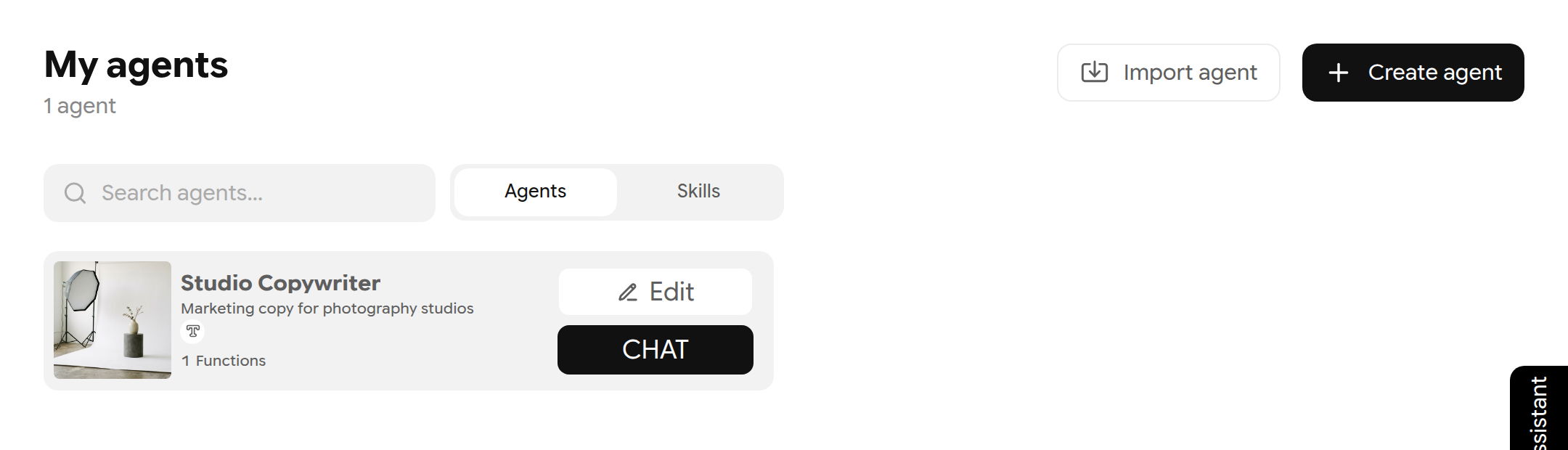
Your agents. Edit appears only on agents you own.
| Badge | Meaning |
|---|---|
| Yours | You created it. You can edit and delete it |
| Added | You added it from a catalog. You can chat with it but not edit it |
| Company | Published in your company's catalog |
| Libertadio | Curated by Libertadia |
Create an agent
Click Create agent. A four-step wizard opens. Your draft is kept in the current browser tab until you finish.
- Identity — upload a photo (JPEG, PNG, WebP or GIF, up to 10 MB) and enter a Name and Specialty. Click Next.
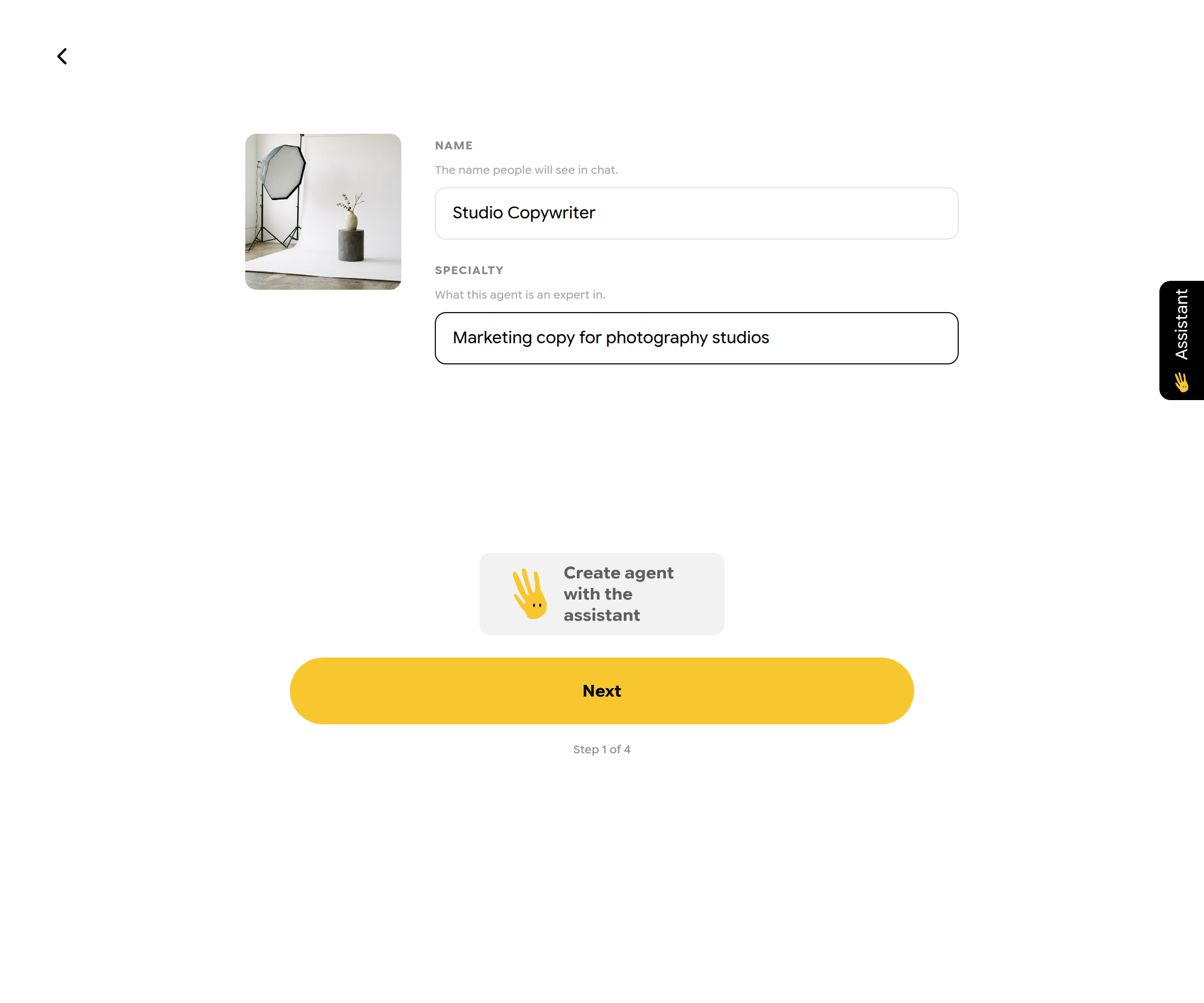
Step 1 — identity.
- Model & instructions — choose the default text model and describe how the agent should behave. Under Advanced you can add global and environment variables.
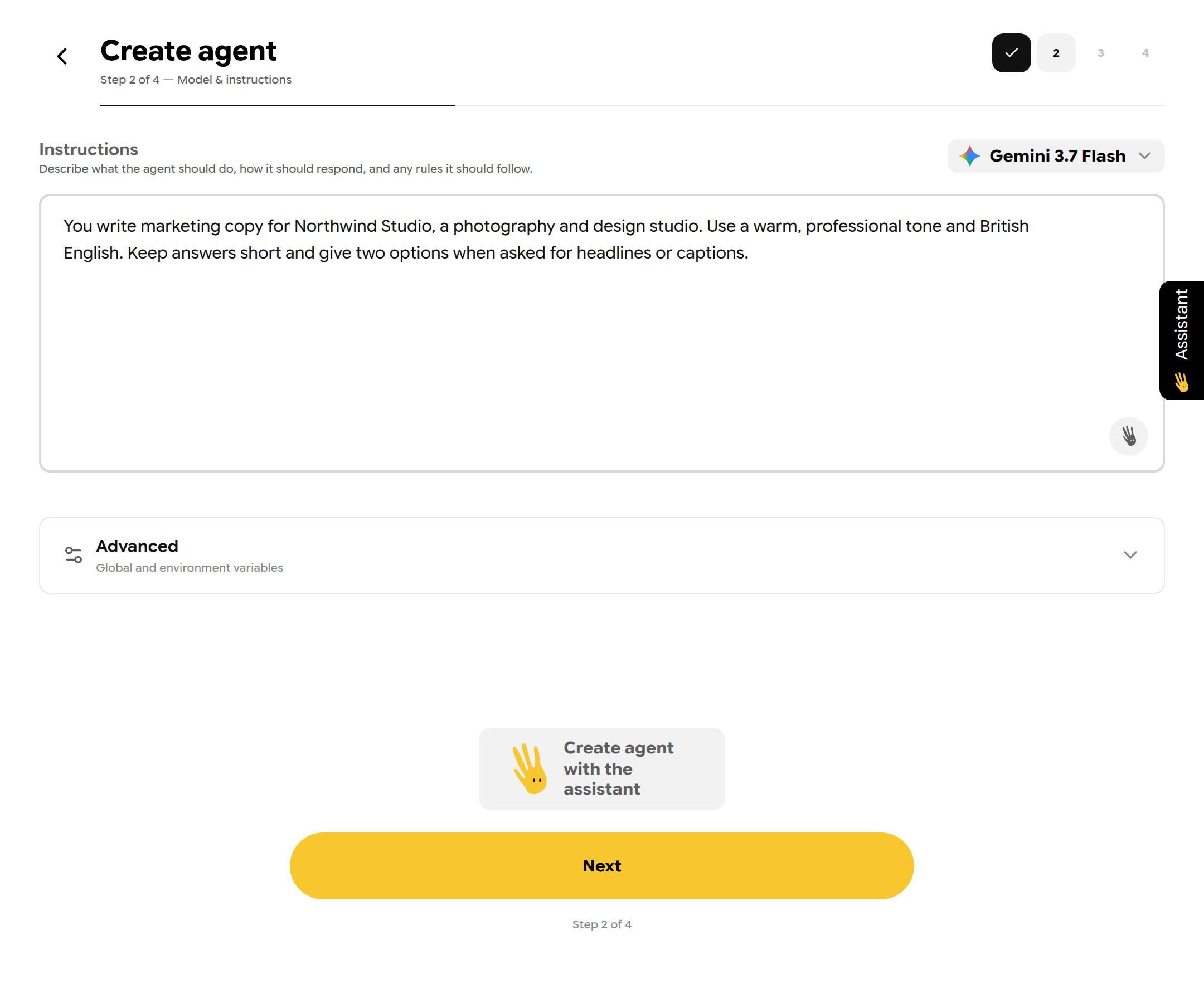
Step 2 — model and instructions.
- Functions (optional) — click Add function. Click the pencils to name and describe it, write what the agent should do, and choose the output type: Text, Image, Audio or Video.
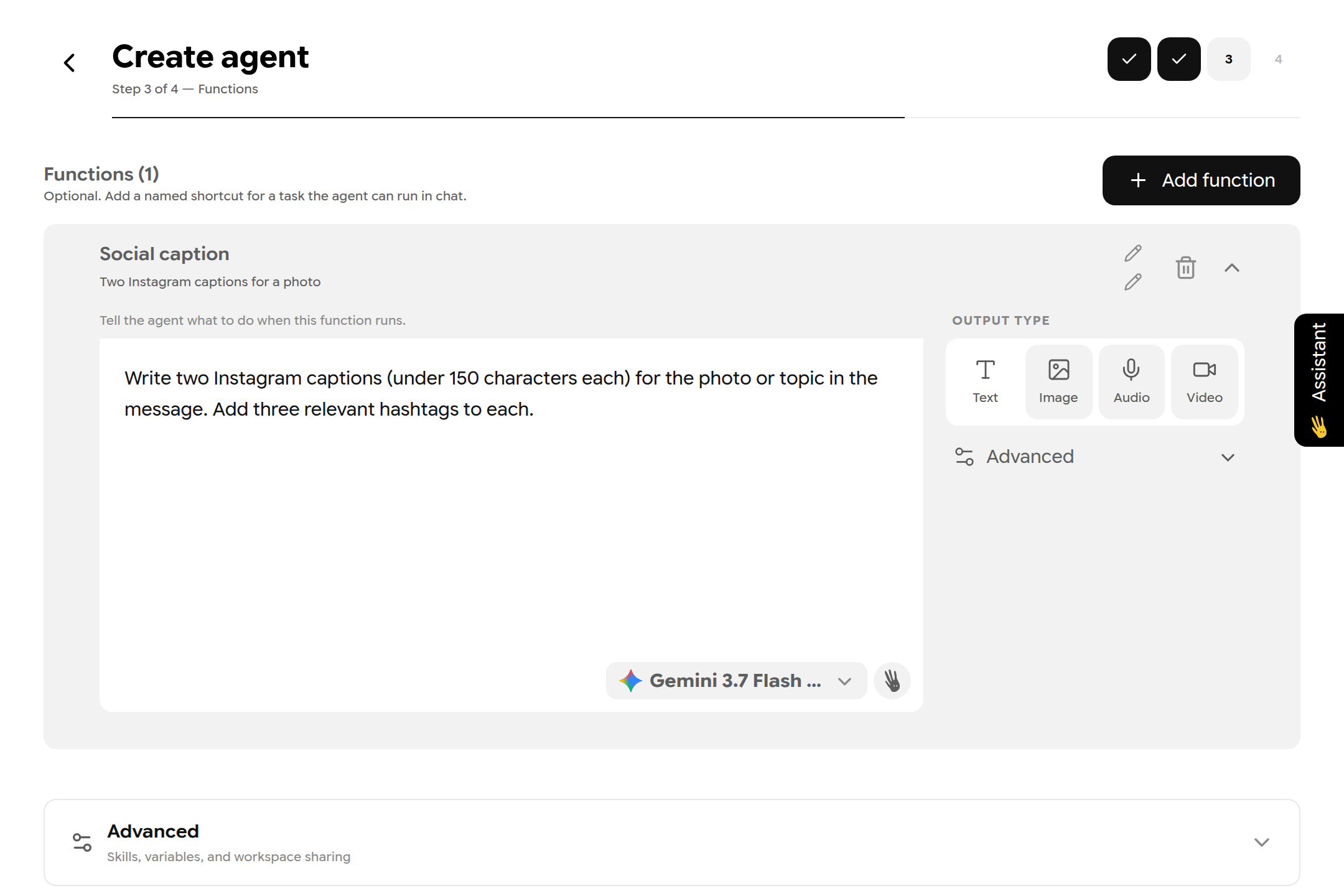
Step 3 — a function called Social caption.
- Review — check the summary and click Create.
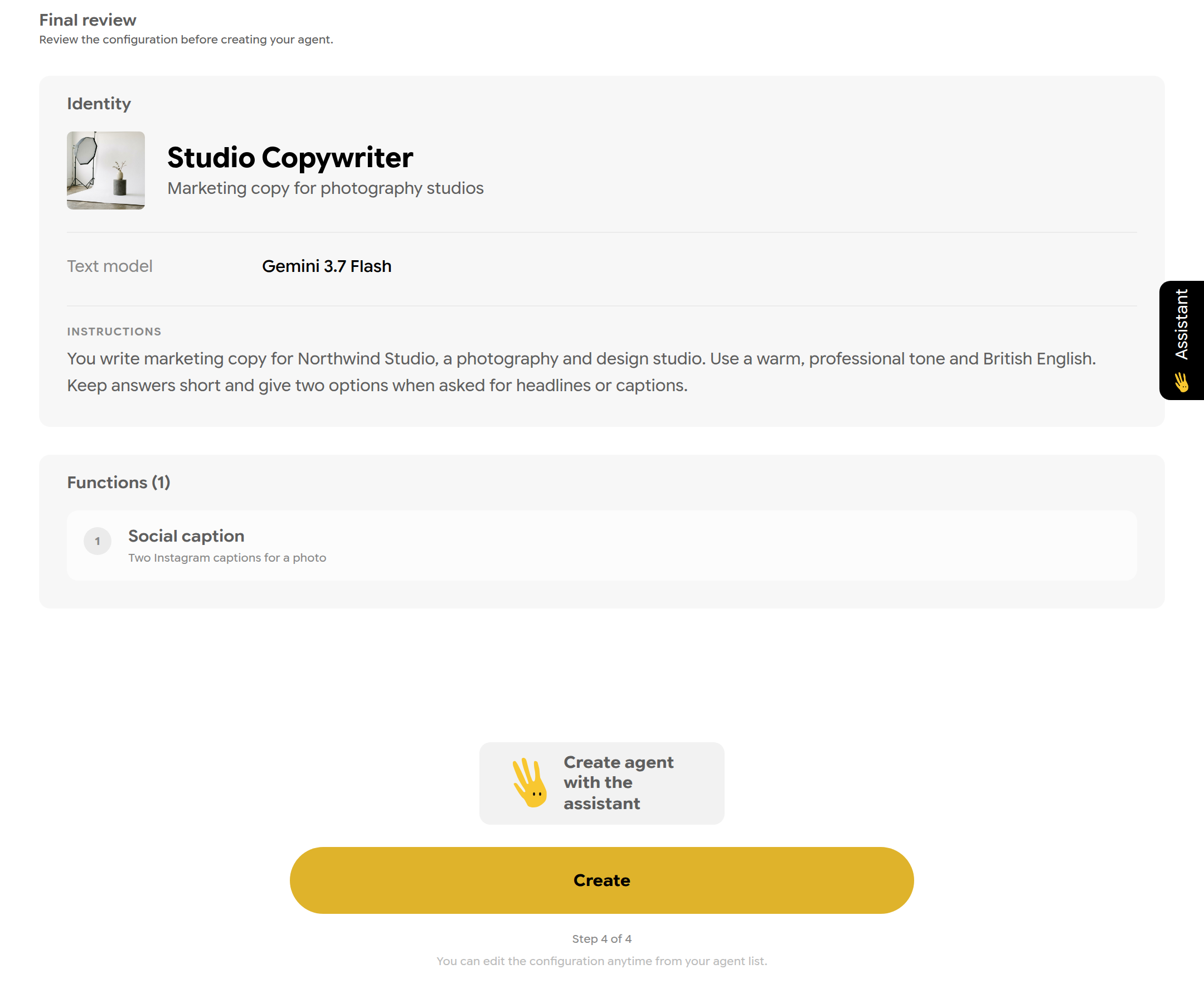
Step 4 — review before creating.
Tip: Click Create agent with the assistant and describe what you need. The assistant fills in the form for you; you still review it and click Create.
Note: On the Demo plan you can own 1 custom agent. Imported agents count toward this limit.
Edit an agent
Click Edit on an agent you own. The editor shows the photo, name and specialty, instructions and model, functions, Advanced settings and, for company administrators, Publish.
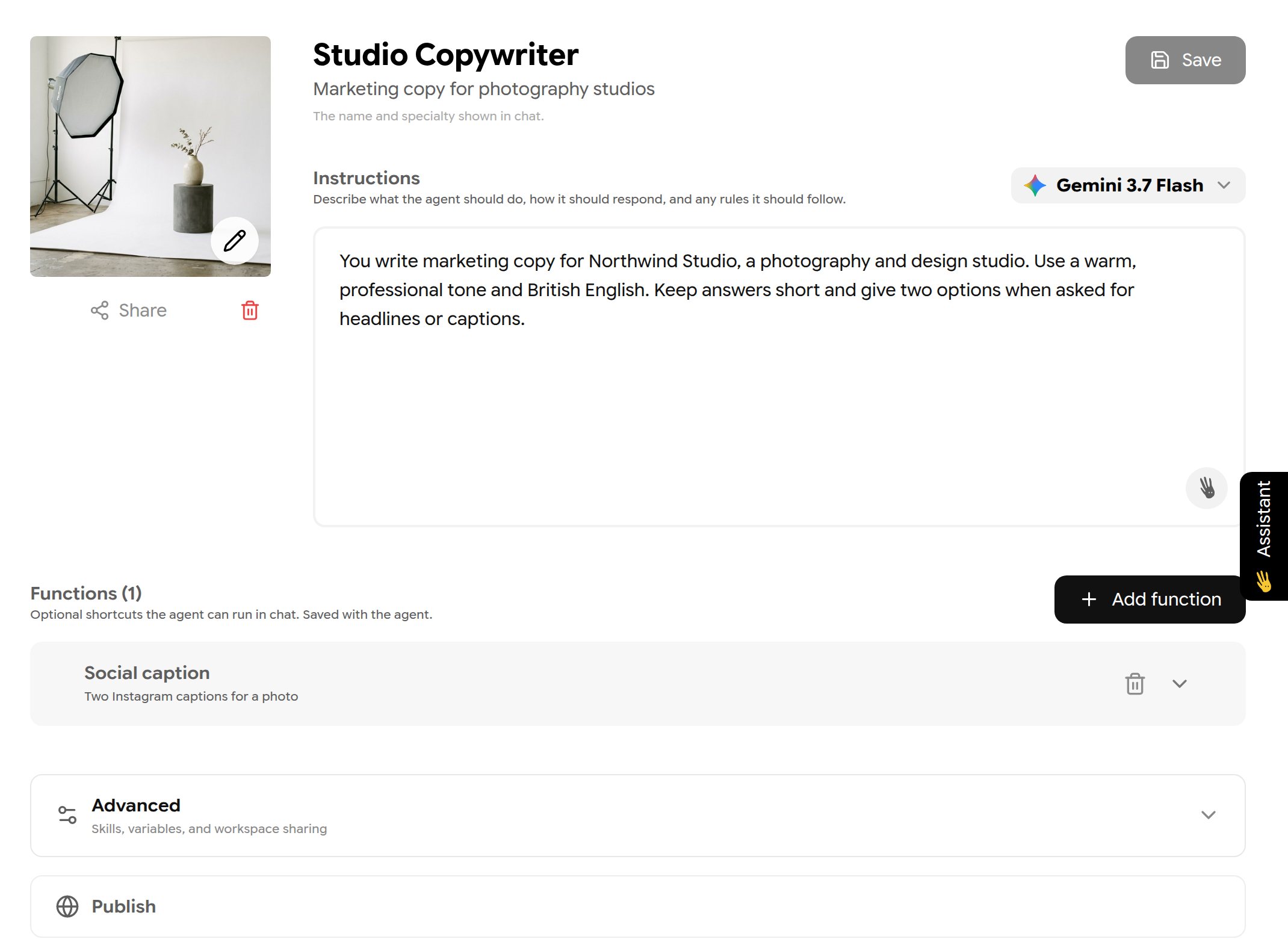
The agent editor.
Important: Changes are saved only when you click Save. An amber dot marks sections with unsaved edits. If you leave the page, Libertadia warns you.
| Limit | Value |
|---|---|
| Name, specialty | 80 characters each |
| Instructions | 20,000 characters |
| Function name / description | 50 / 100 characters |
| Function prompt | 10,000 characters |
| Skills per agent | 25 (up to 10 loaded per reply) |
| Global or environment variables | 20 of each |
In Advanced on a function you can attach a brain or an integration, add variables that the chat asks for, create mini-functions, and chain functions into a sequence. Brains and integrations need a text function and a model that supports tools.
Chat with an agent
- Click CHAT on the agent card, or pick the agent with the Agents button in the composer.
- Optionally choose a function from the lightning menu on the agent bar.
- Type your message and send.
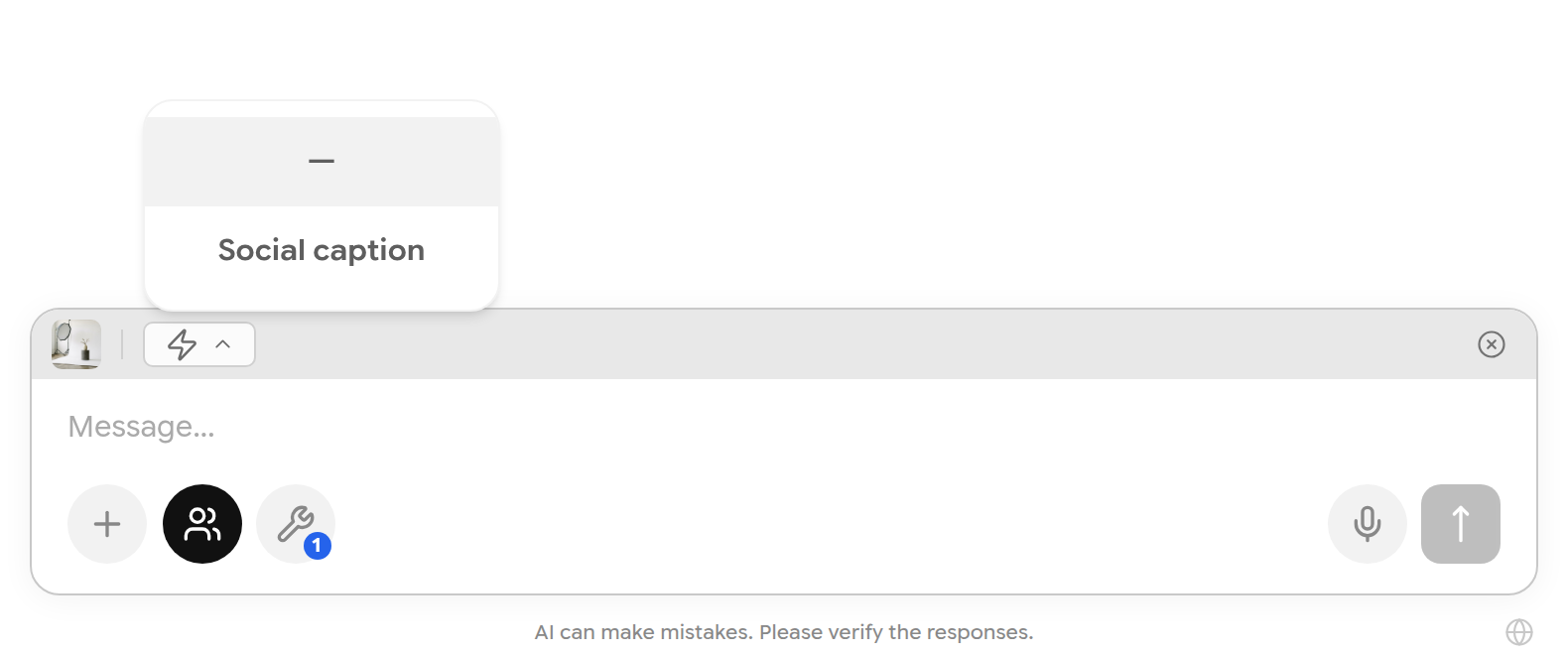
Choosing a function.
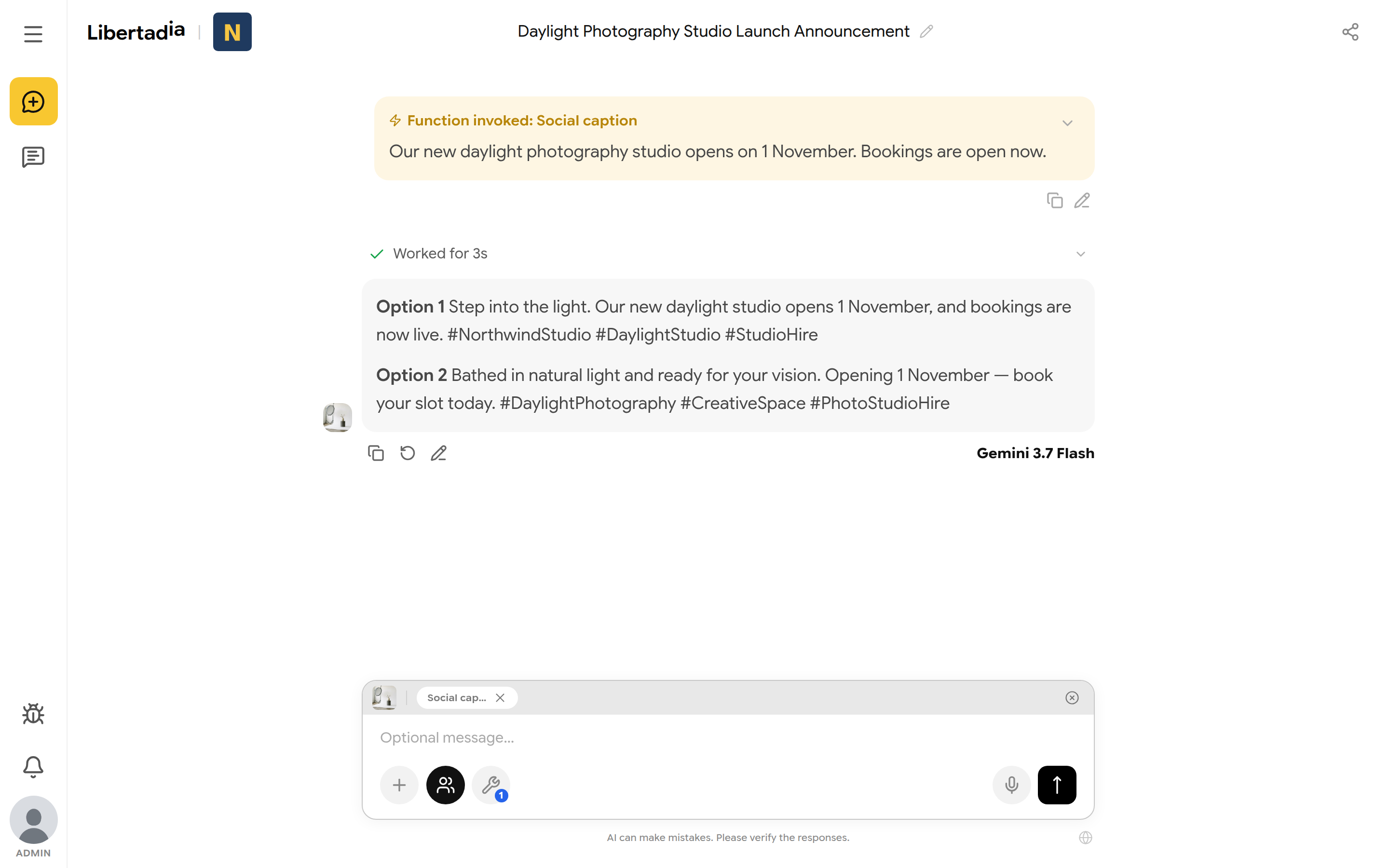
The agent follows its instructions and the selected function.
Click the × on the agent bar (Exit agent mode) to go back to free chat.
Share and import agents
In the editor, click Share under the photo to get an 8-character code. Anyone who imports the code gets their own editable copy, not access to yours.
To import, click Import agent, paste the code and click Import.
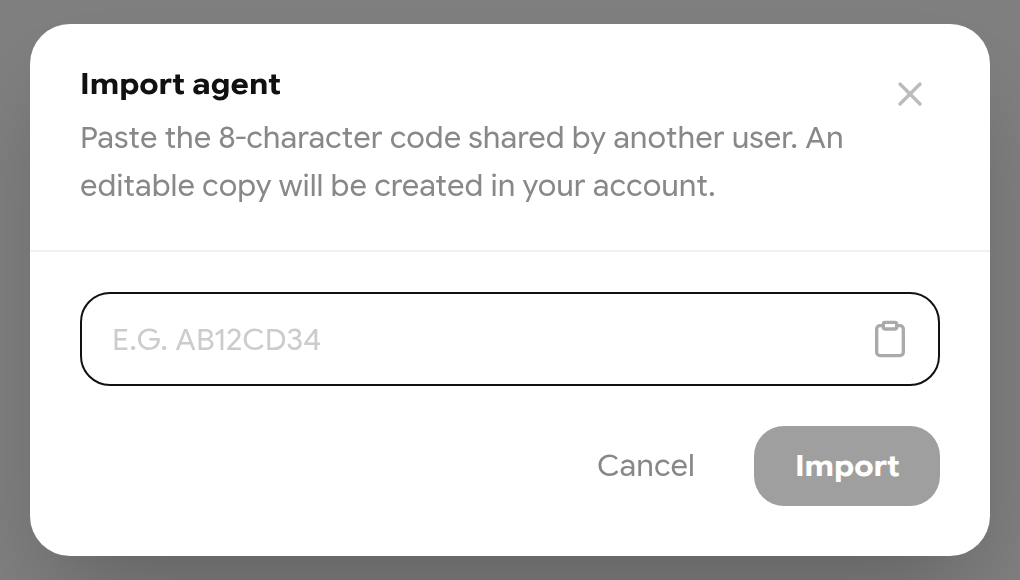
Importing an agent with a share code.
You cannot import your own agent, or the same agent twice.
Libertadios and company agents
Libertadios are ready-made agents curated by Libertadia. Filter by Free, Pro or Premium, then click Discover to see details and add one to your list. PRO agents need the PRO plan or higher. PREMIUM agents are a one-time purchase.
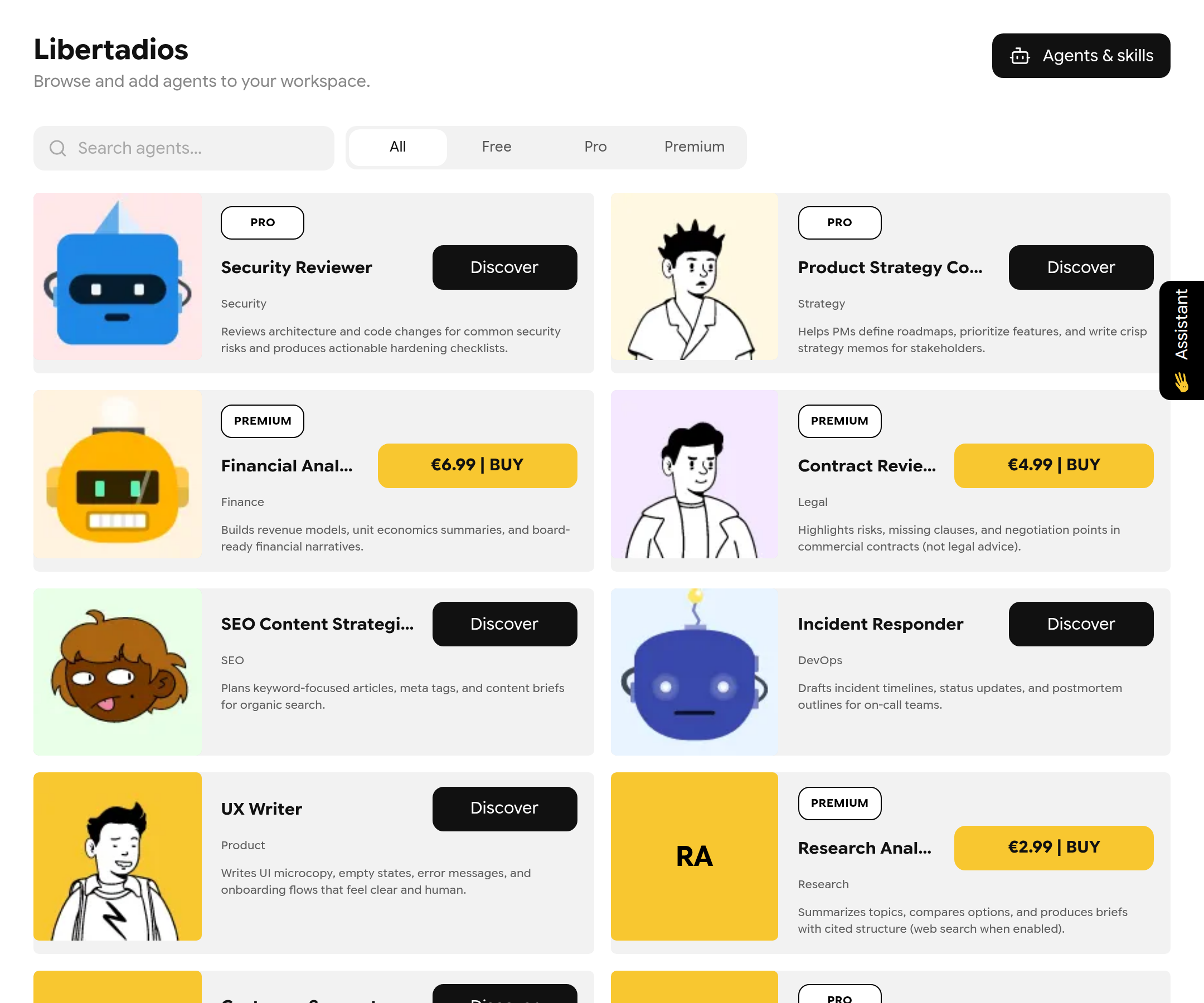
The Libertadios catalog.
Company agents (company workspaces only) lists agents your administrators published for everyone. Added agents stay read-only; removing one only takes it off your list.
Skills
A skill is a markdown playbook, such as a brand voice guide or a reporting checklist. Agents that have the skill attached may load it during a text chat when the task fits.
- Open Agents & skills → Skills and click New skill.
- Click the pencil next to the title to name the skill.
- Write the markdown in Source, or ask the Document assistant on the right to draft it. Review its changes and click Apply changes or Reject.
- Check the result in Preview.
- Attach the skill to an agent in the agent editor under Advanced, and click Save.
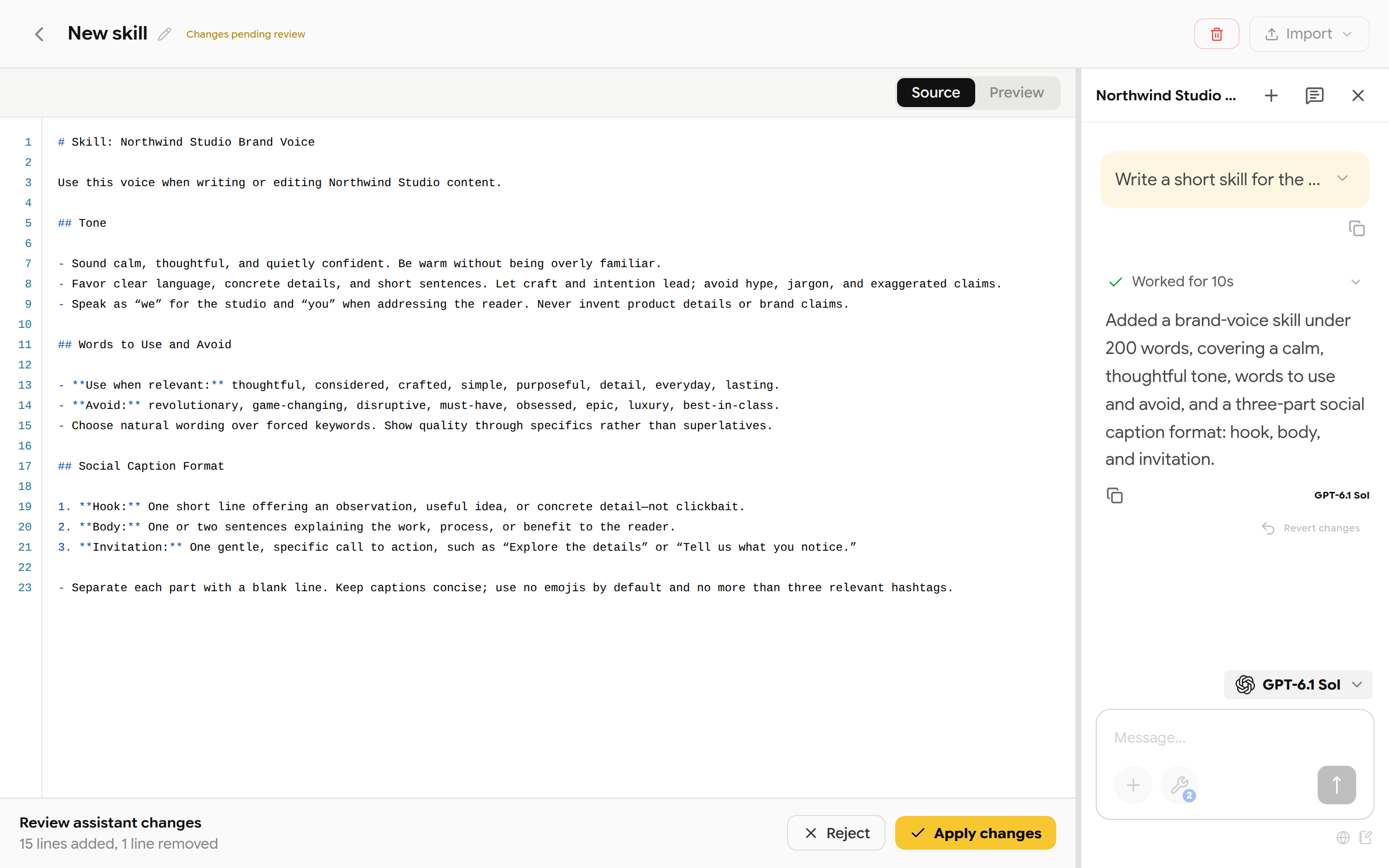
Drafting a skill with the Document assistant.
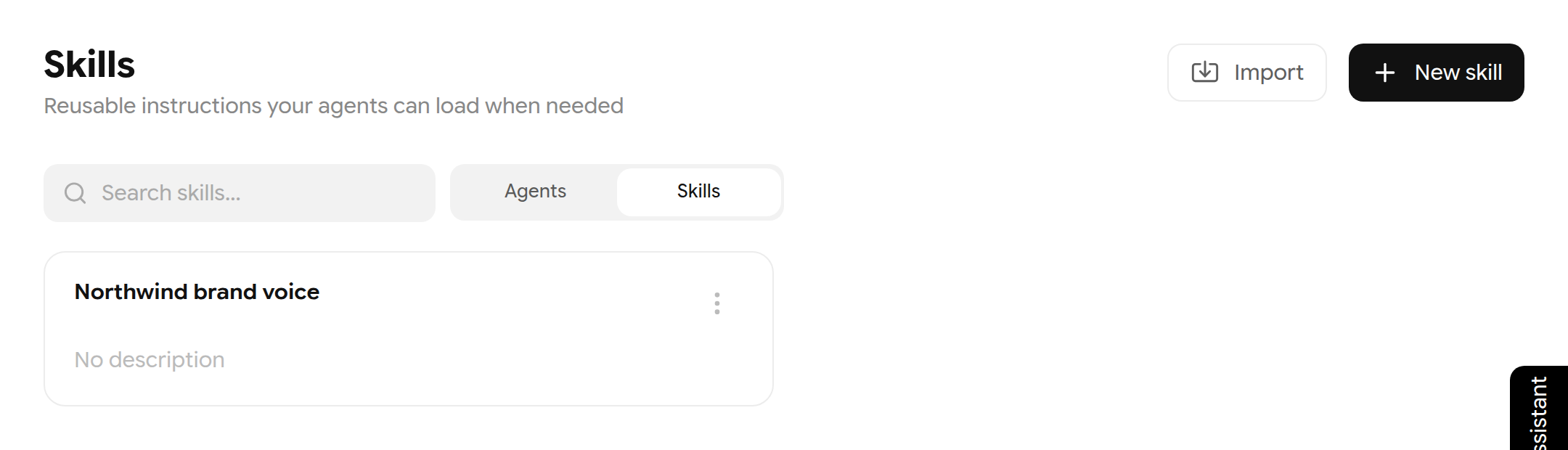
Your skills.
Import accepts plain-text files up to 2 MB. A skill can hold up to 50,000 characters. Deleting a skill is permanent.