Using Libertadia
Documents and storage
Documents are rich-text files you write with a built-in AI assistant, then share or export. Storage (My Drive) holds all your files for the current workspace and lets you send them to chat, agents or brains.
Create a document
- Open the chat panel and go to Docs.
- Click + next to Create a document. The editor opens.
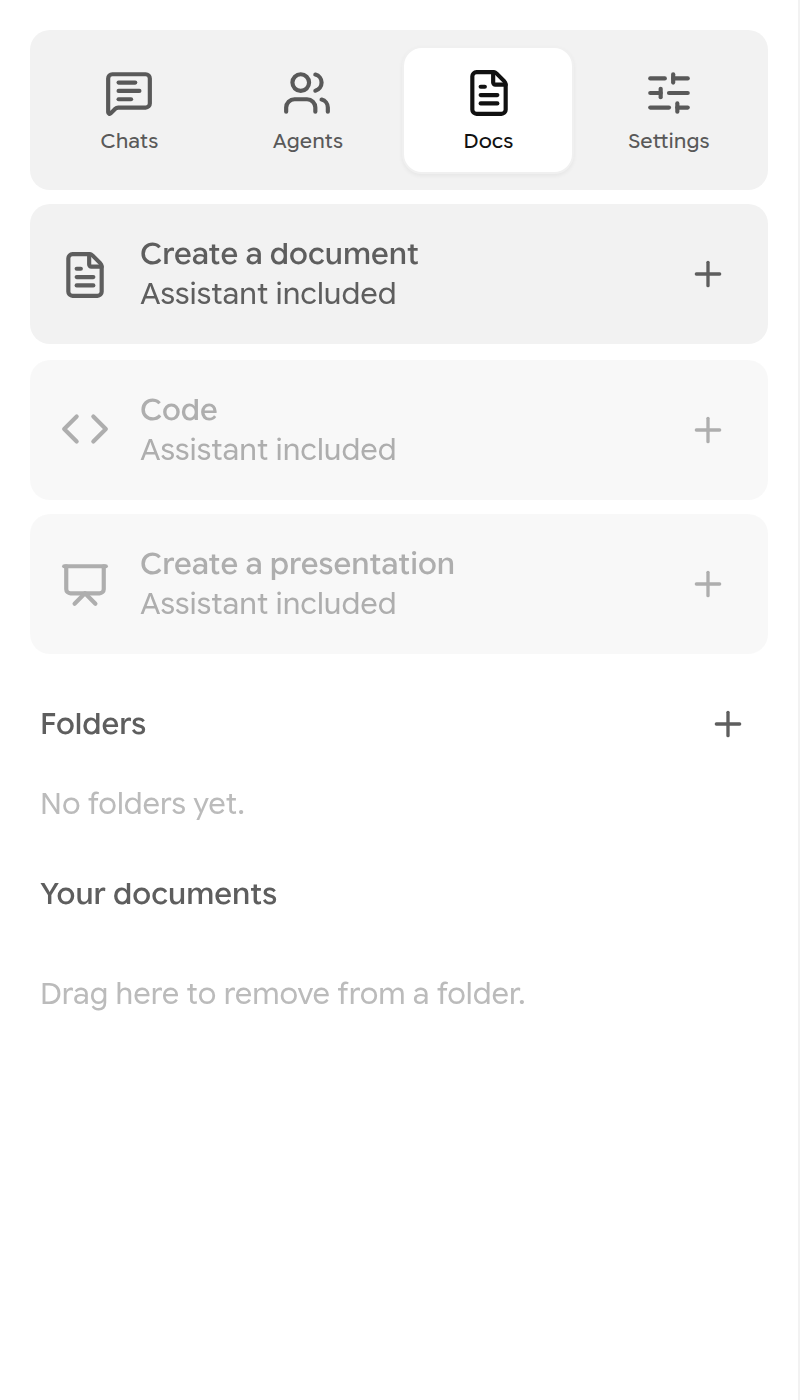
The Docs tab. Code and presentations are not available yet.
- Click the pencil next to Untitled document to name it.
- Type in the page. Use the Home, Insert, Layout, References and View tabs for formatting: headings, lists, colours, alignment, tables and more.
Write with the Document assistant
Describe what you want in the Document assistant on the right, for example “Add a section called Studio rules with a bulleted list”. The assistant shows its changes in colour: green for added text, red for removed text.
Click Apply changes to keep them or Reject to discard them. Revert changes undoes an applied edit.
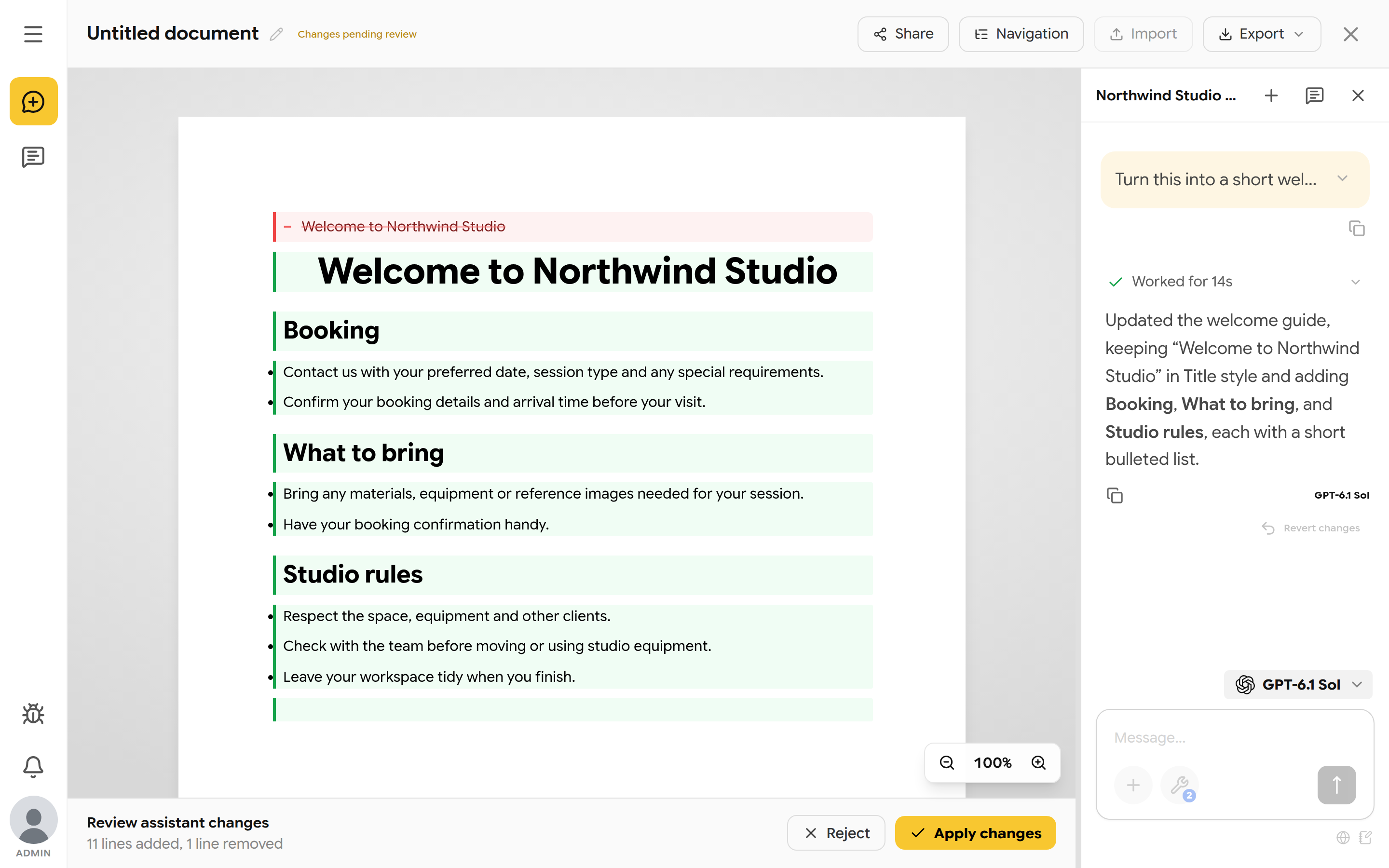
Reviewing the assistant's changes.
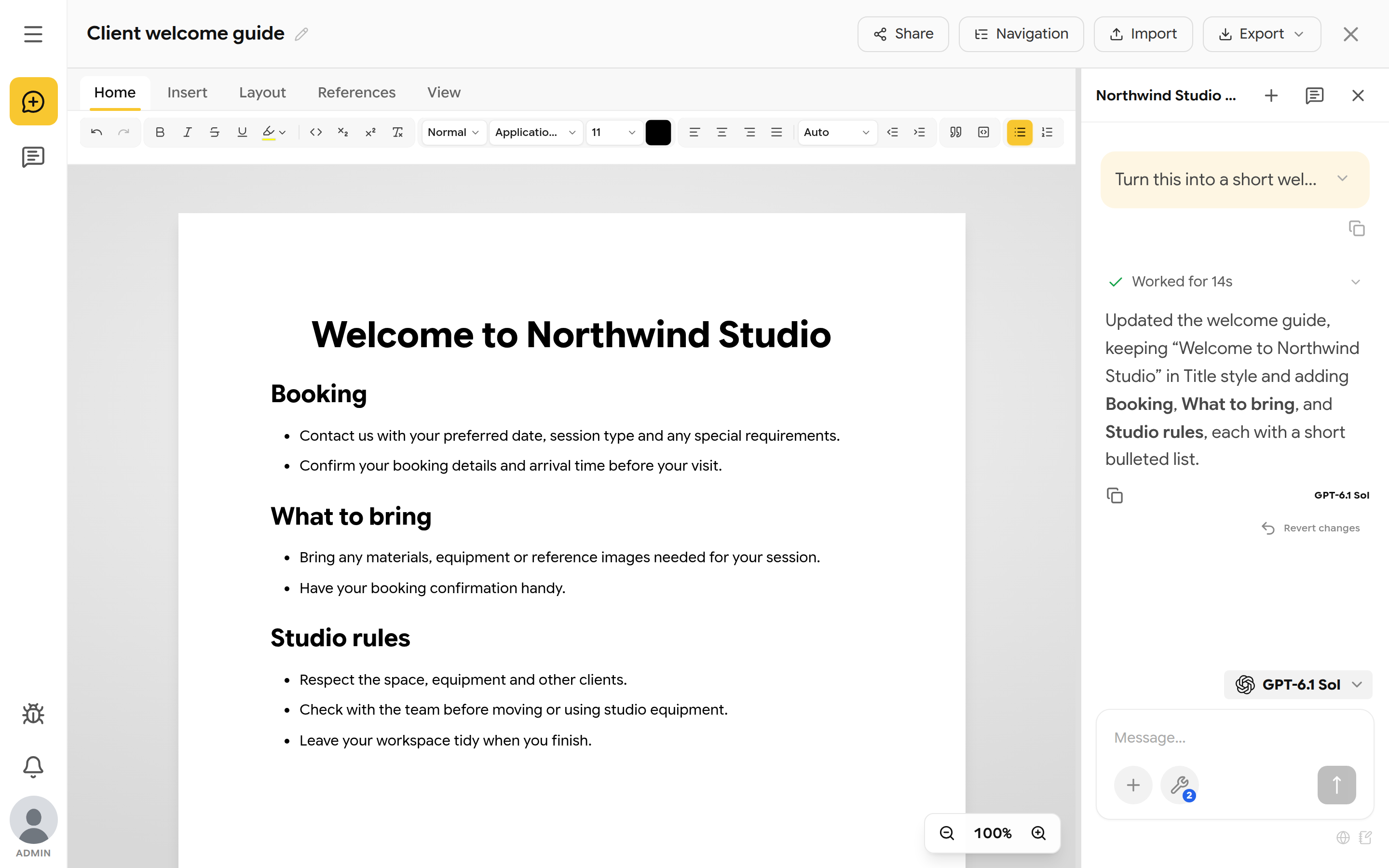
The finished document.
Note: The document is saved automatically. If you lose your connection, it is saved on your device and synced when you are back online.
Import and export
- Import replaces the current content with a .docx, .odt, .md or text file, up to 25 MB. You are asked to confirm.
- Export downloads the document as plain text, Markdown, Word, Writer or PDF.
- Word or Writer template… fills your own company template with the document. Mark where the content goes with a content marker in its own paragraph; optional placeholders such as
[CLIENT_NAME]can be filled by hand, by AI, or automatically.
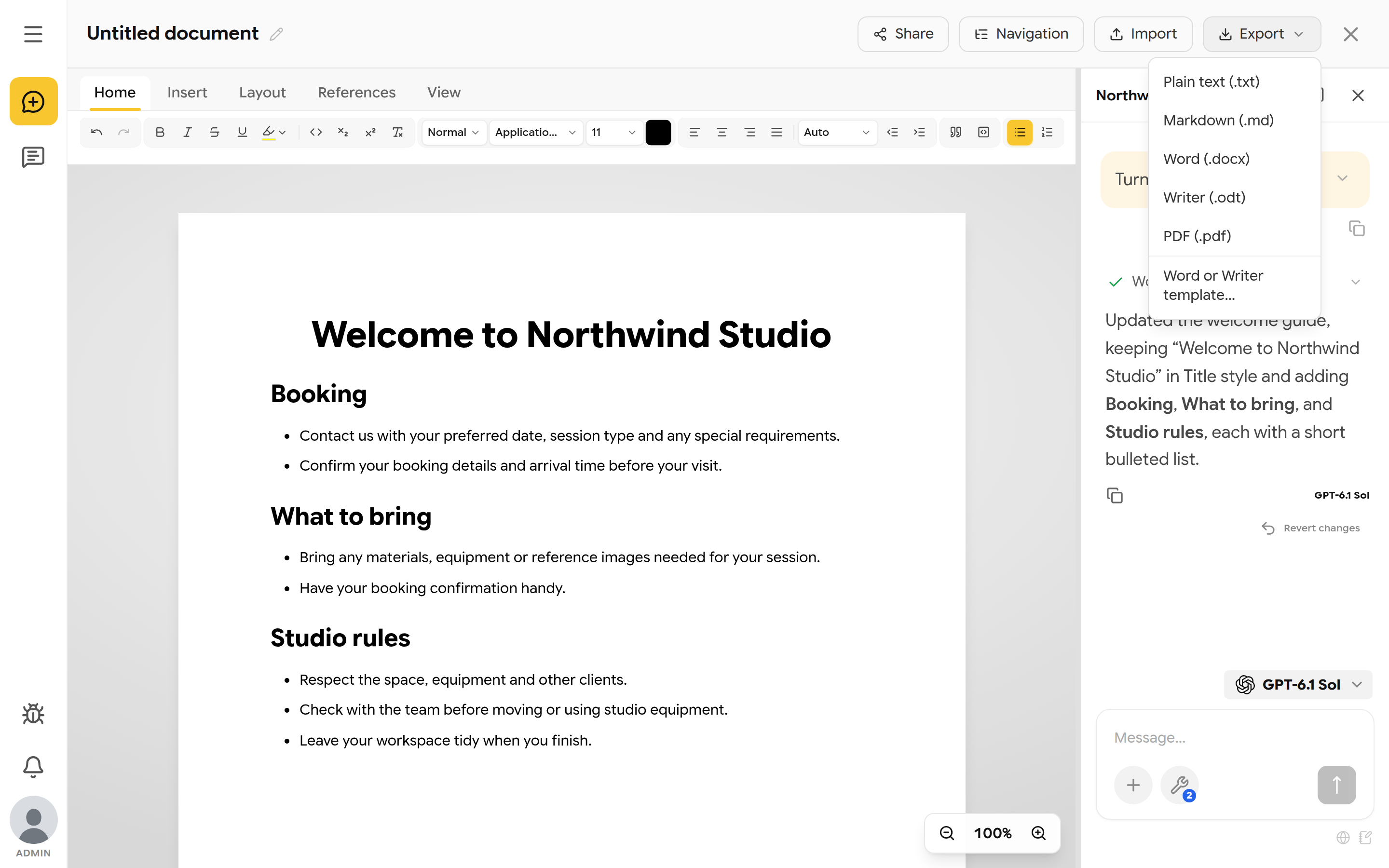
Export formats.
Share a document
- Click Share.
- Search for a person by name or email. Only existing Libertadia users can be added.
- Choose Can edit or Can view.
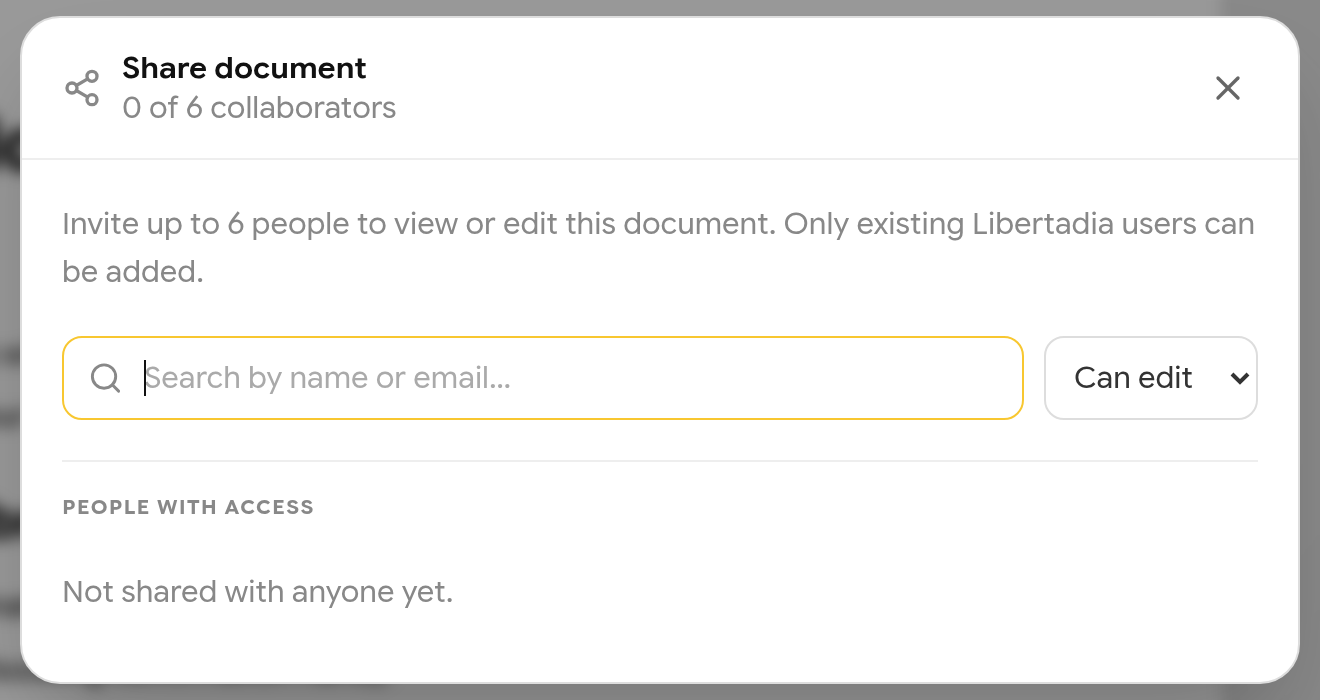
Sharing a document with up to 6 people.
People you share with see live changes. The status shows Saving…, Saved, Offline, Reconnecting… or View only.
Storage (My Drive)
Open Storage to manage files in the current workspace.
- Import uploads files or whole folders. New file and New folder create items.
- Right-click a file, or click ⋮, for Open, Export, Share, Copy, Cut, Send to (Agent, Chat or Brain), Rename and delete options.
- Move to Recycle Bin keeps the file until you restore it or empty the bin. Delete forever cannot be undone.
- Shared lists files others shared with you.
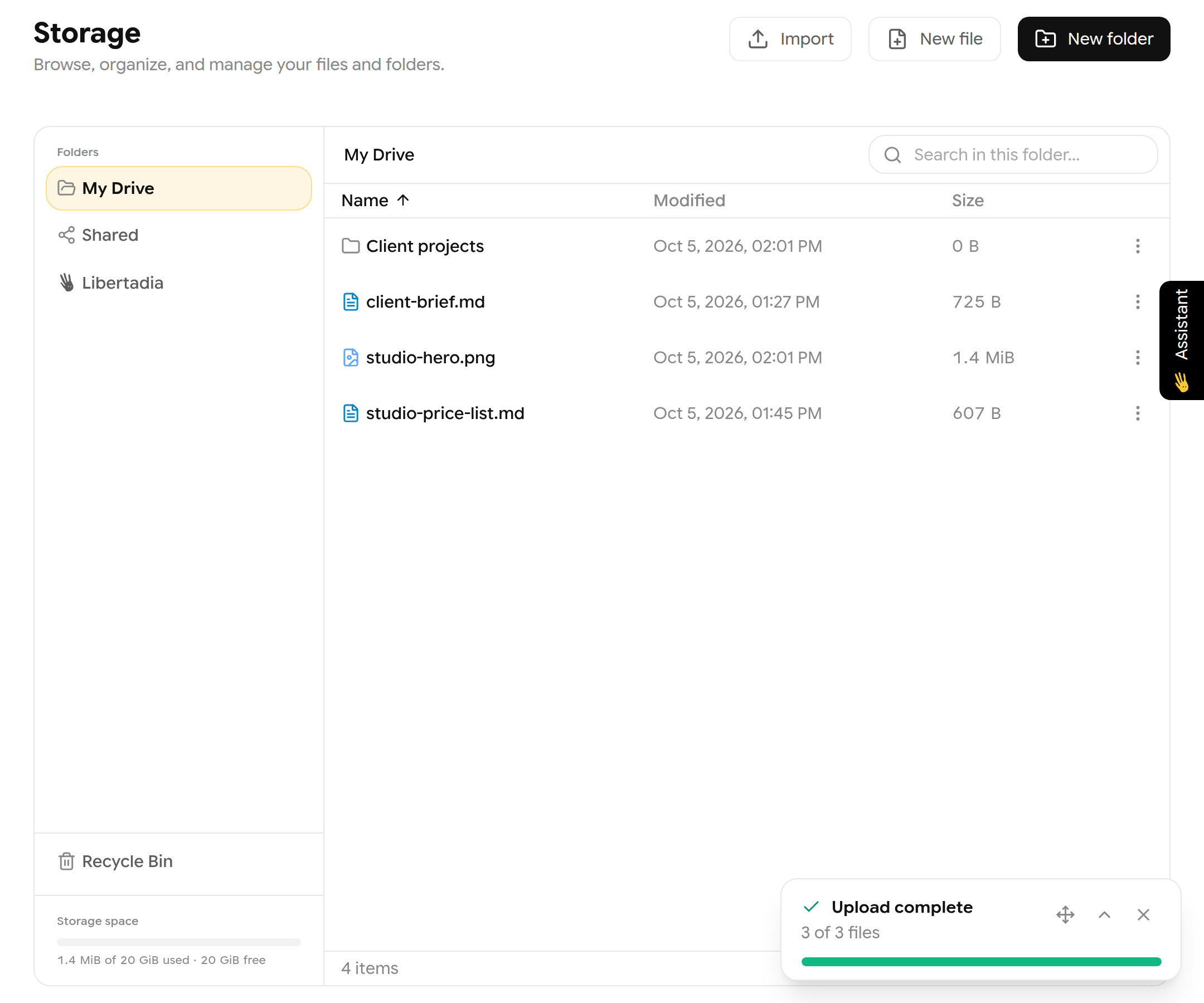
My Drive after uploading three files.
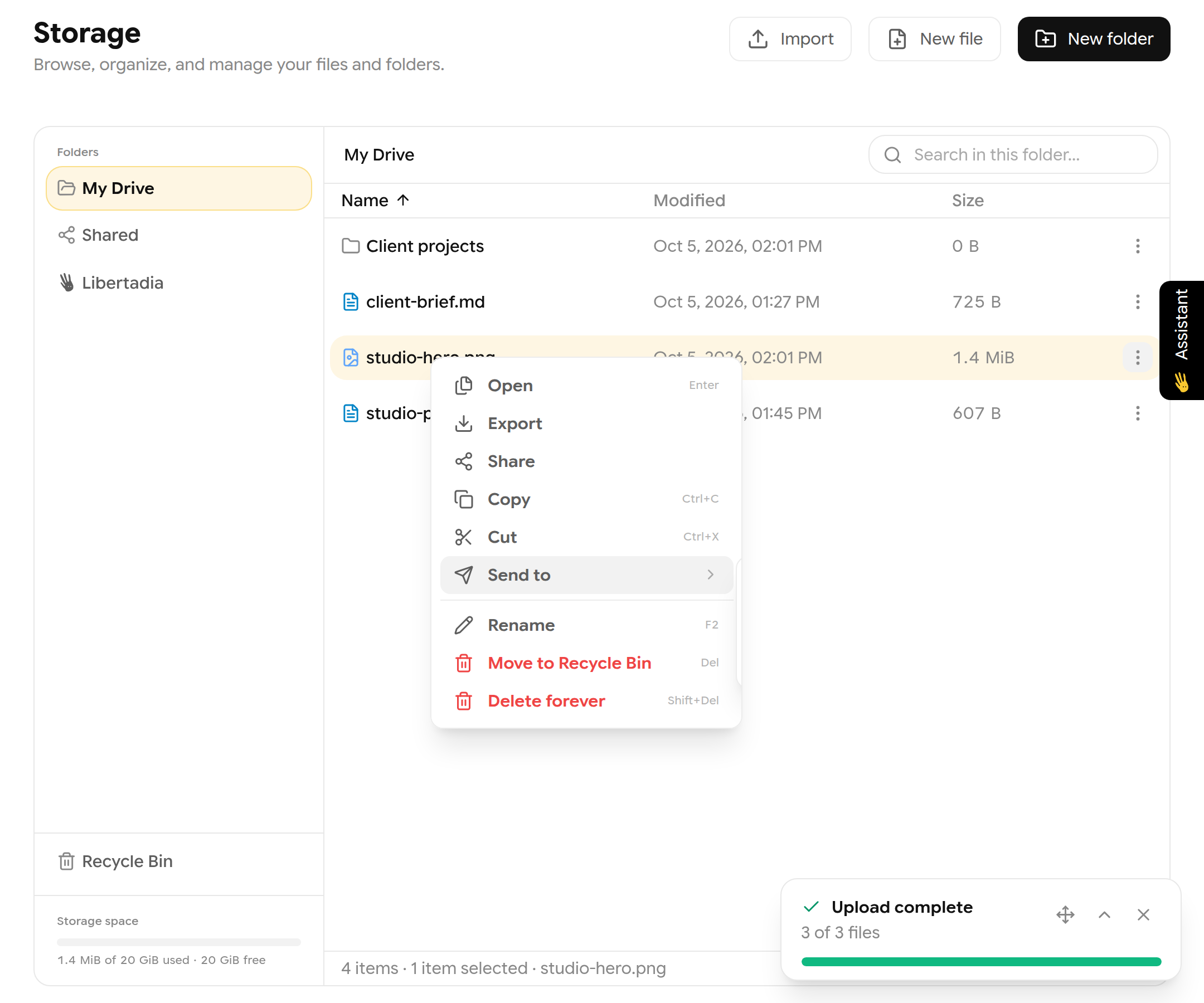
File actions.
| Plan | Storage quota |
|---|---|
| Demo | 1 MB |
| Base | 125 MB |
| PRO | 5 GB |
| Team | 20 GB for 3 seats, +5 GB per extra seat |
| Enterprise | As agreed |
Each file can be up to 50 MB, and you can upload up to 1,000 files at once.
Tip: If your storage looks full after deleting files, empty the Recycle Bin. A company administrator can also set a personal storage limit for you.