Using Libertadia
Creating images, video and voice
Libertadia can generate pictures, short videos and spoken audio from a text description. Each mode is started from the + menu and adds a coloured bar to the composer with its options.
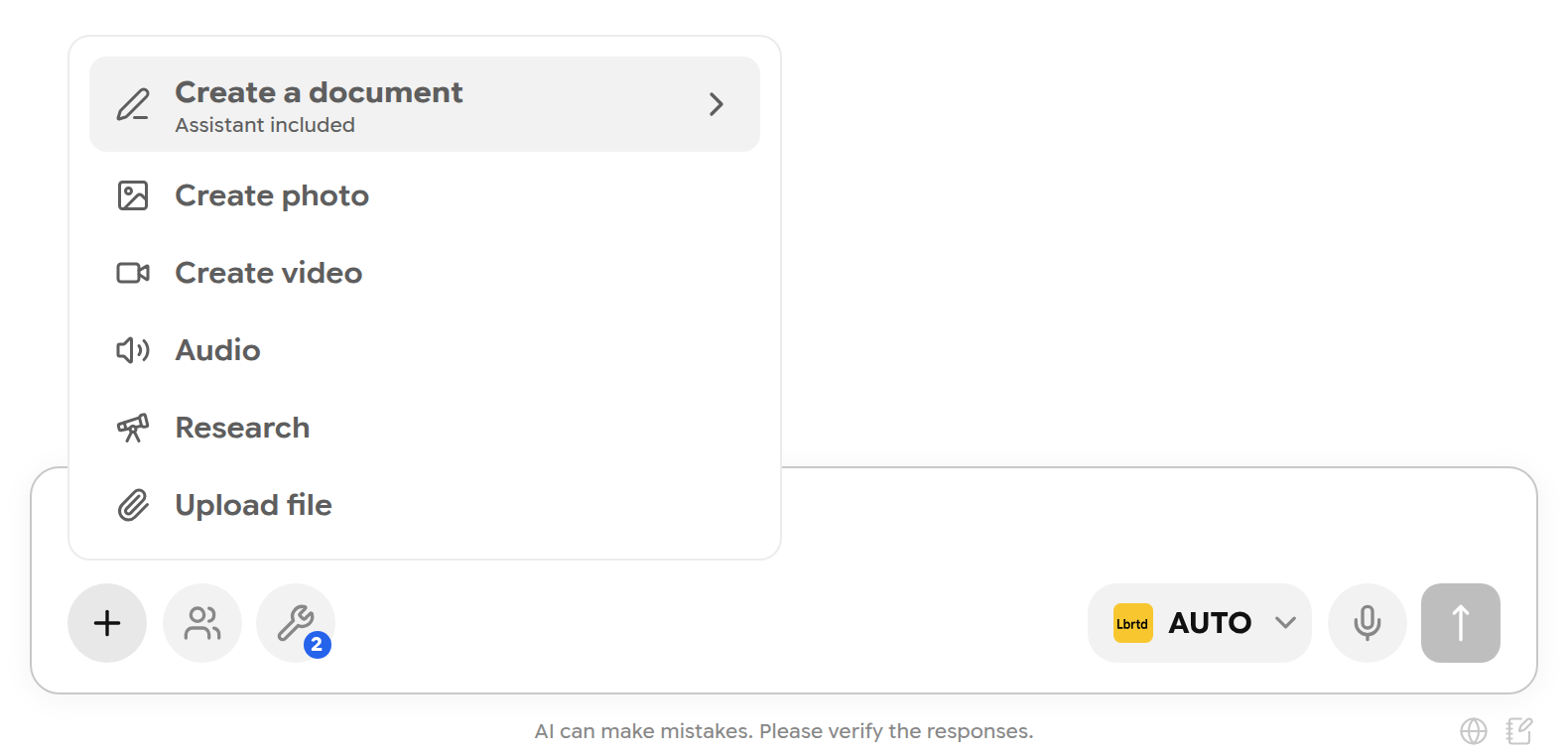
The + menu.
Important: Generation uses AI balance like any other request. Video is the most expensive. Hover over a model in the picker to see its price before you start.
Create an image
- Click + → Create photo. A yellow image bar appears above the message box.
- Set the options on the bar, such as aspect ratio (for example 16:9) and size (1K).
- Describe the image: subject, setting, light and style.
- Press Enter.
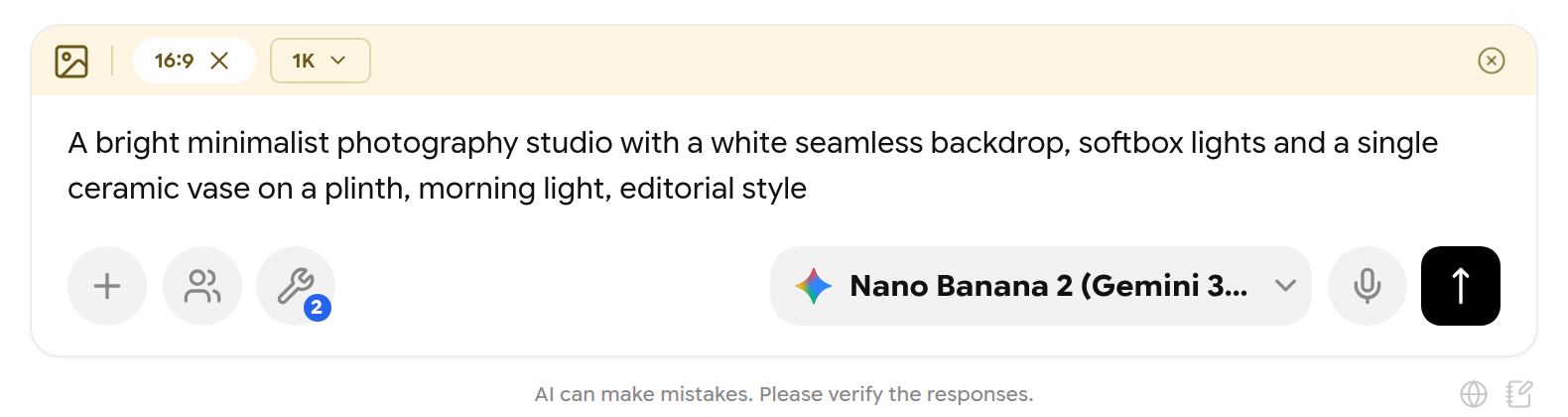
Image mode with the aspect ratio set to 16:9.
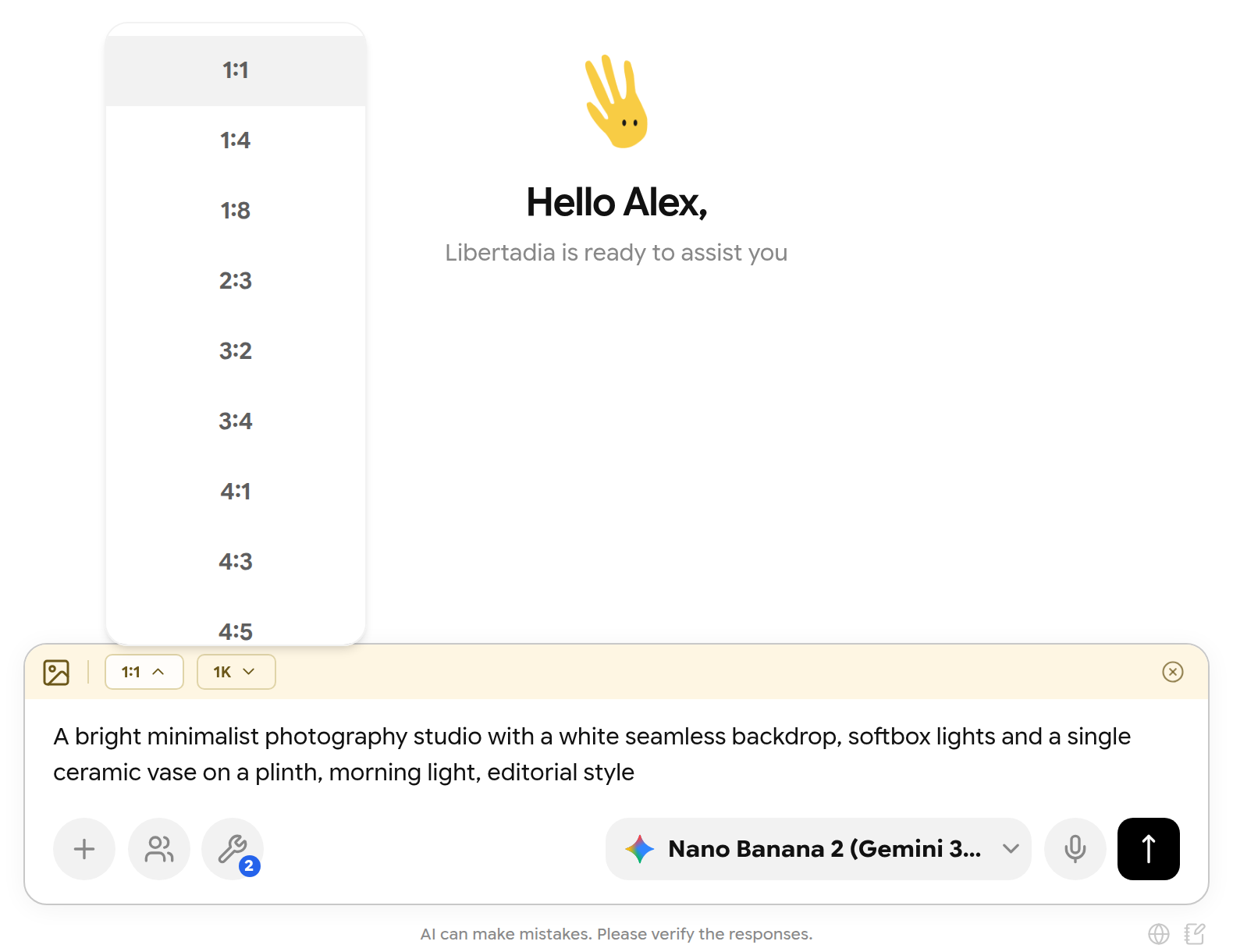
Choosing an aspect ratio.
While the image is created, a placeholder card in the chosen shape shows Generating image…. You can keep working; you are notified when it is ready.
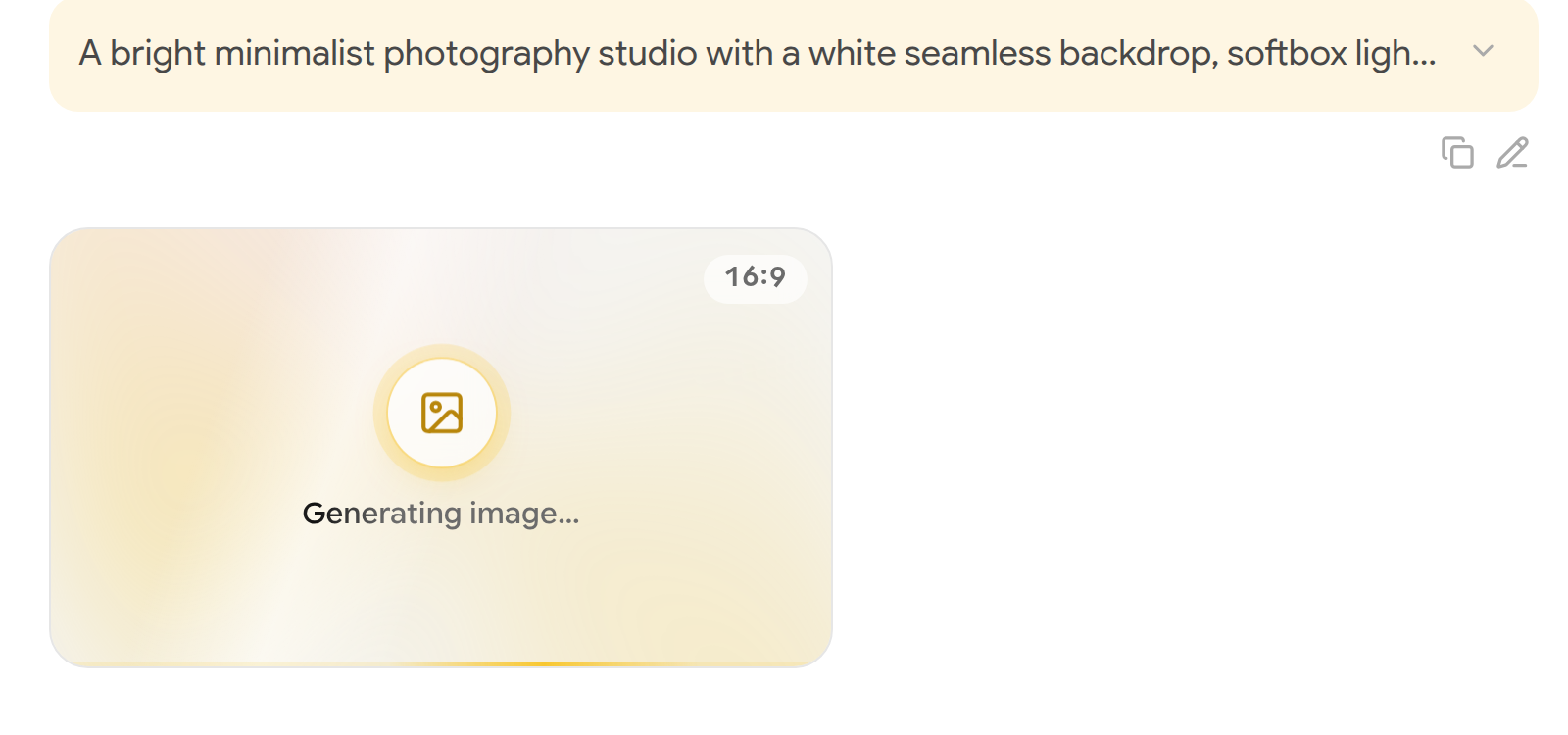
The image is being generated.
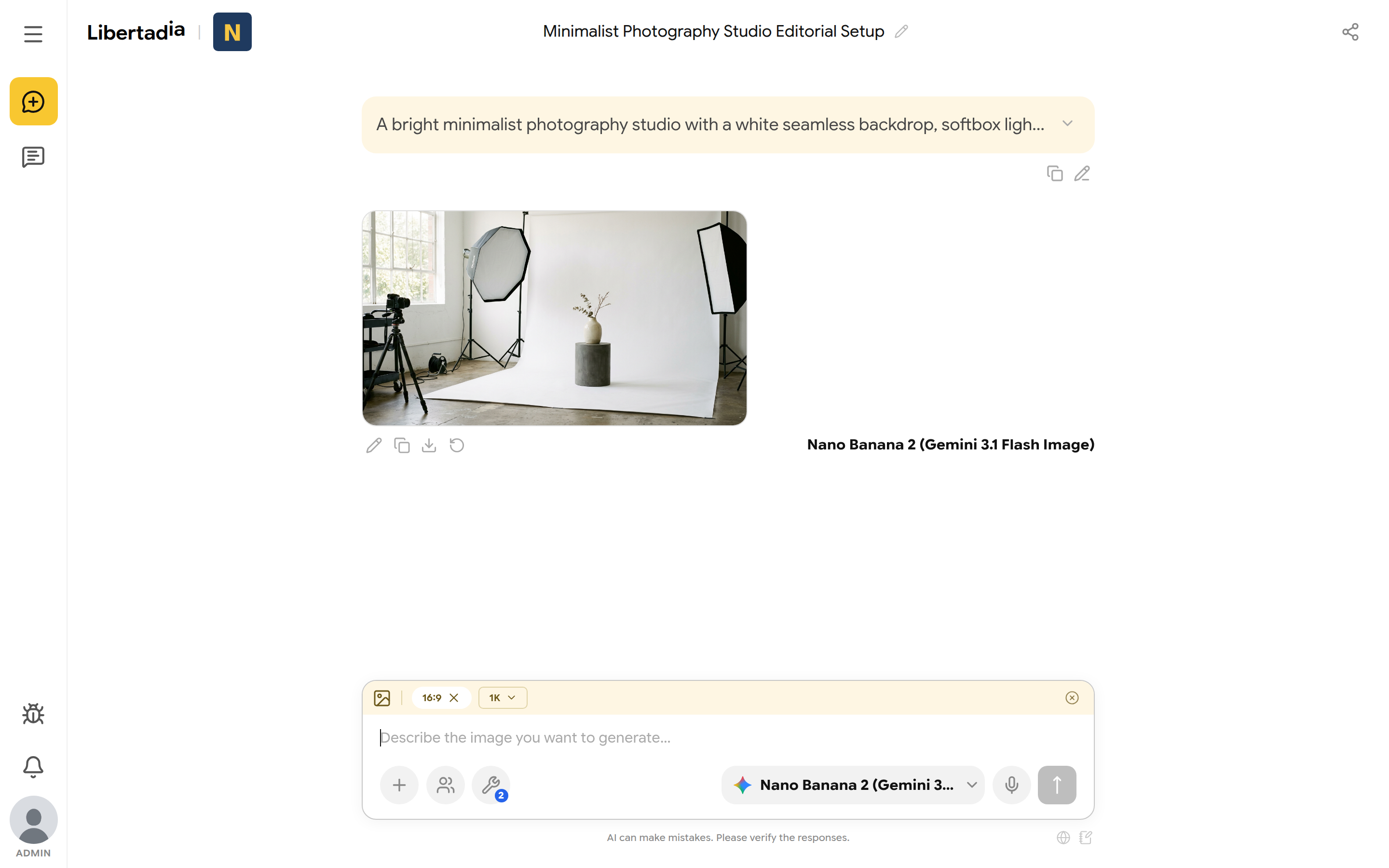
The finished image.
Under the image you can Edit it in the built-in image editor, Copy, Download, or Regenerate. Click the image to view it full size. To change an existing picture, attach it as a reference image and describe the change.
| Option | What it controls |
|---|---|
| Aspect ratio | The shape of the image, for example 1:1, 16:9, 9:16 |
| Size / quality | Resolution and level of detail |
| Format | PNG keeps transparency; JPEG files are smaller |
| Style, background, strength | Available on some models. Strength applies only with a reference image |
Tip: In AUTO, a short image request may be expanded into a more detailed description (framing, light, style) before the image is created.
Create a video
- Click + → Create video. An orange video bar appears.
- Choose the duration, resolution, aspect ratio and whether to include audio.
- Pick a video model in the model picker, or leave it on AUTO.
- Describe the scene and the camera movement, then press Enter.
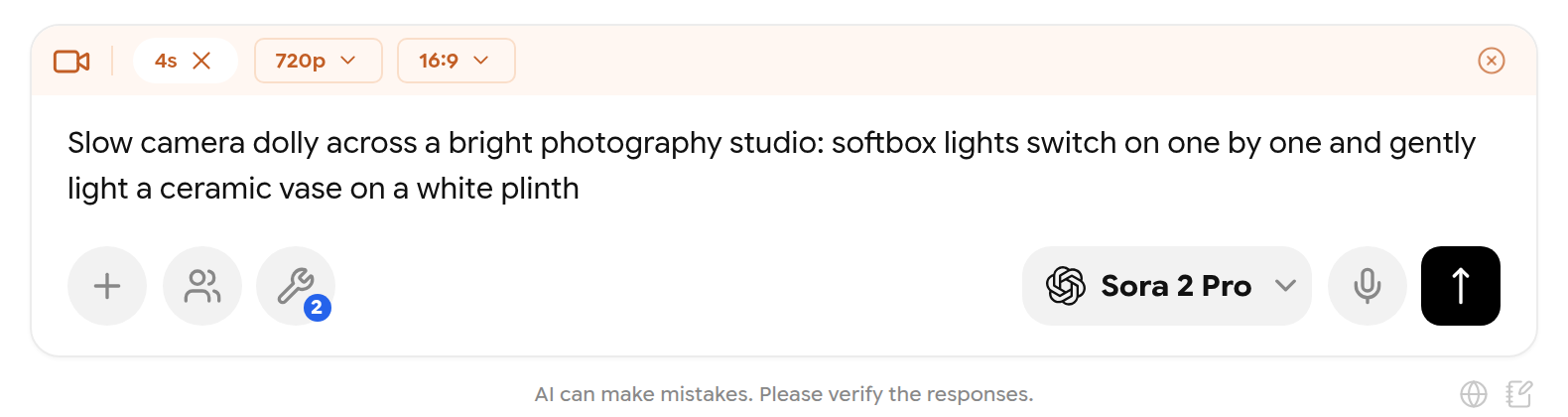
Video mode with a 4-second, 720p, 16:9 clip.
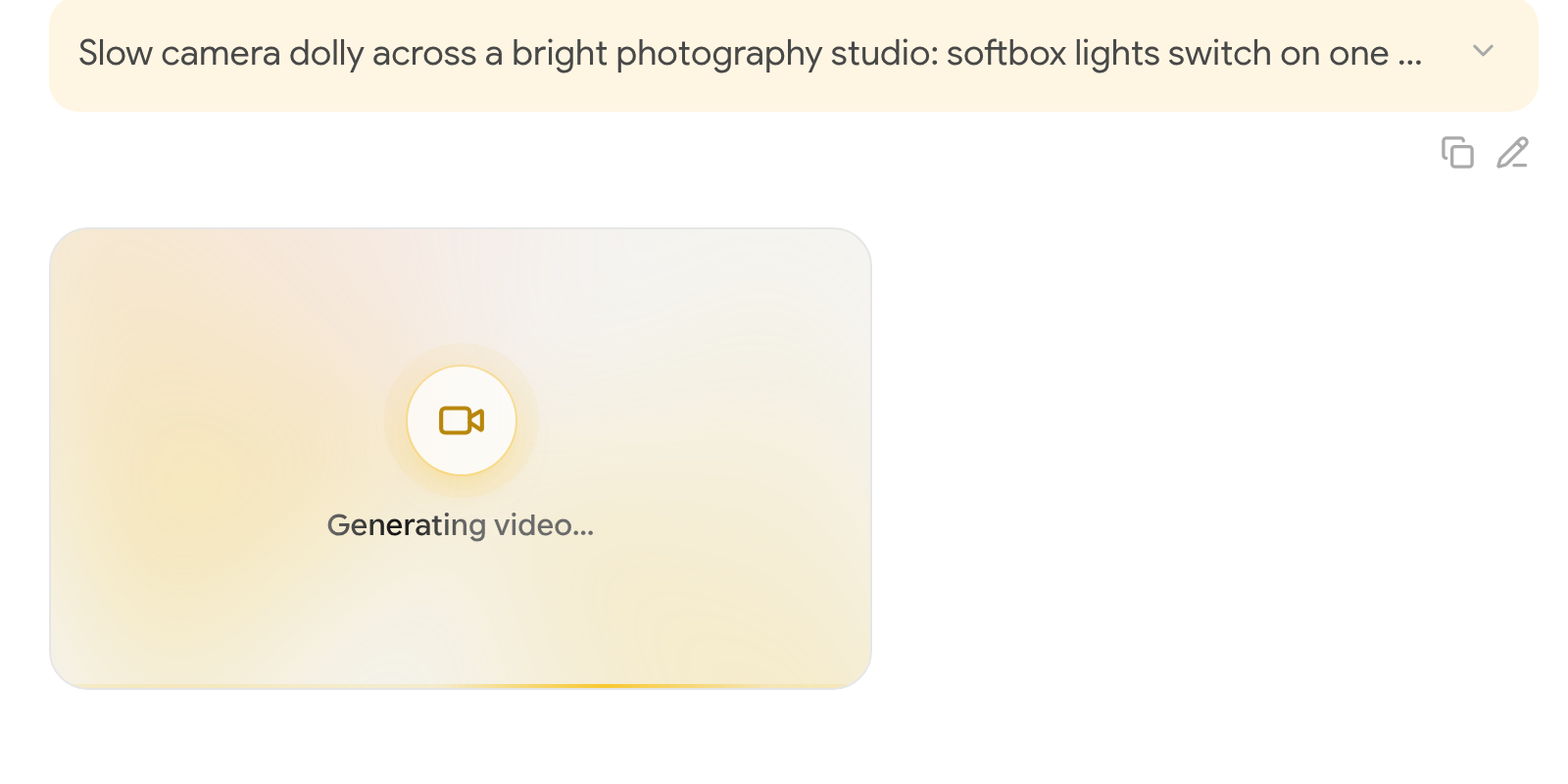
Videos take from under a minute to several minutes.
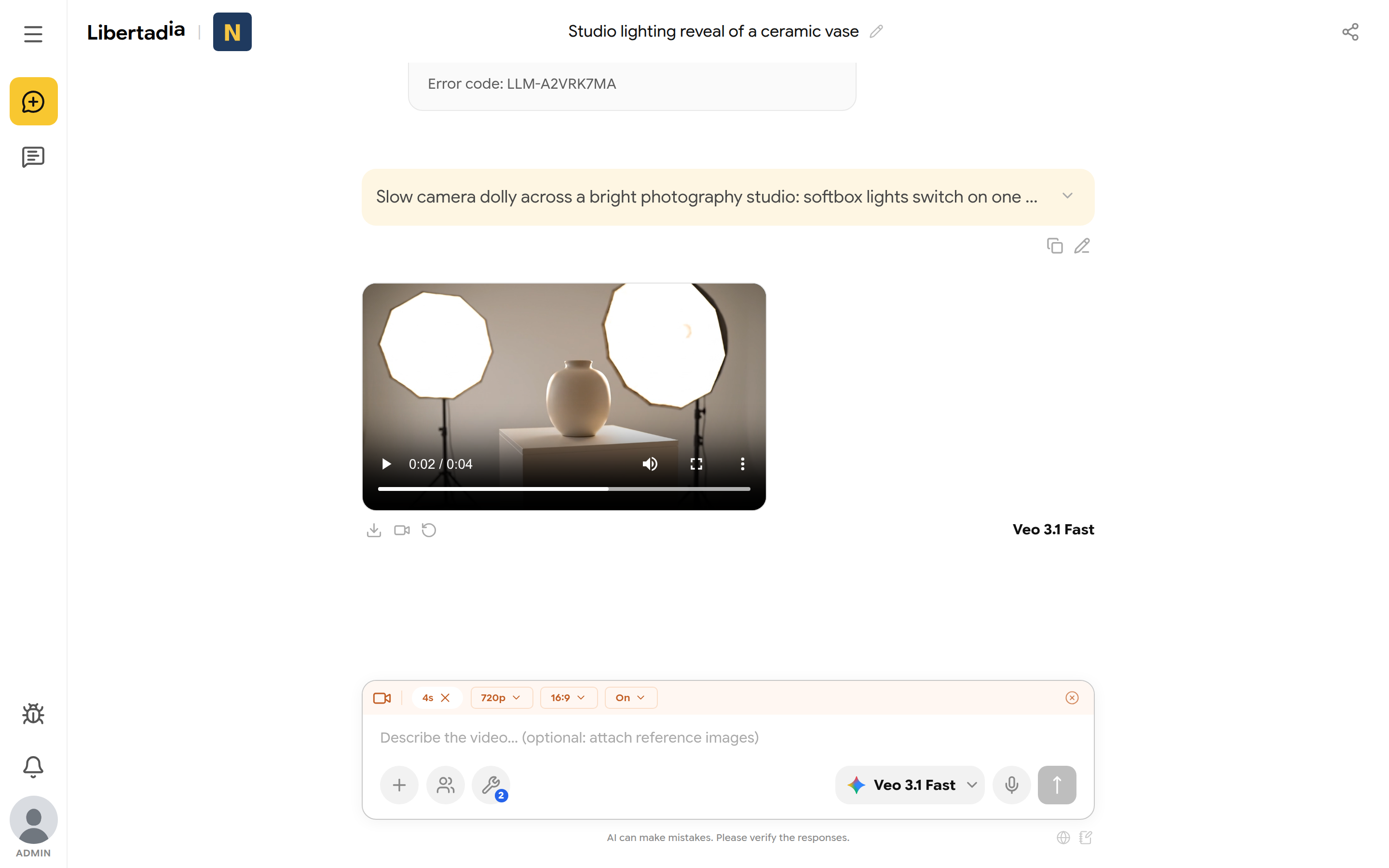
The finished video with play, volume and full-screen controls.
Under the video you can Download it, use it as a starting point for a new video, or Regenerate it. You can also attach reference images, or mark Start and End frames (up to 4 images).
Note: Supported durations and resolutions differ by model. Hover over the model in the picker to see them.
Voice mode
Voice mode turns text into speech, or makes the AI answer out loud.
- Click + → Audio. A green voice bar appears.
- Choose the mode, the voice model and the voice.
- Type your message and press Enter.
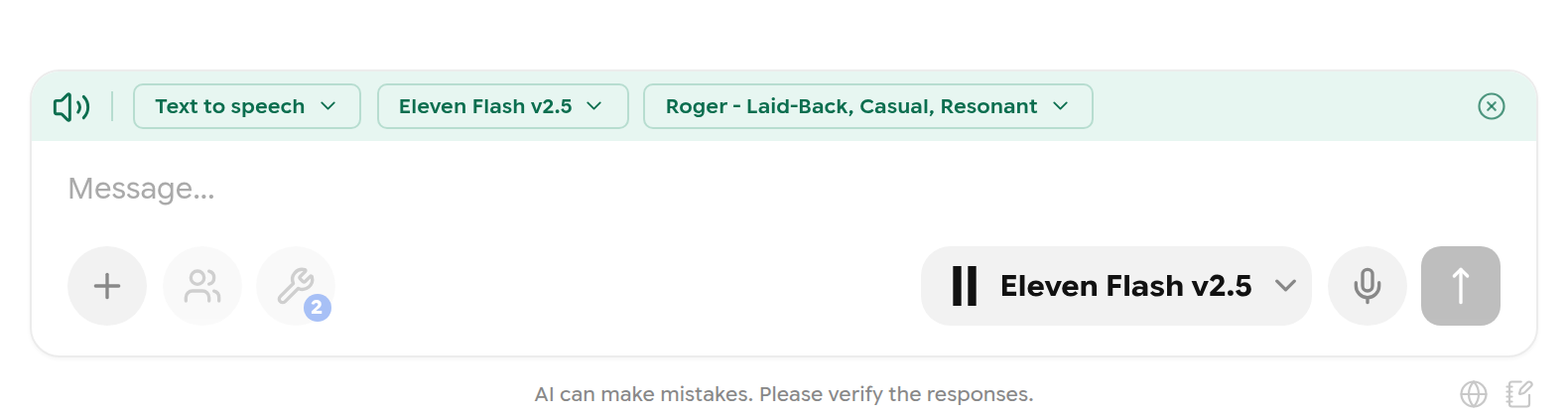
The voice bar.
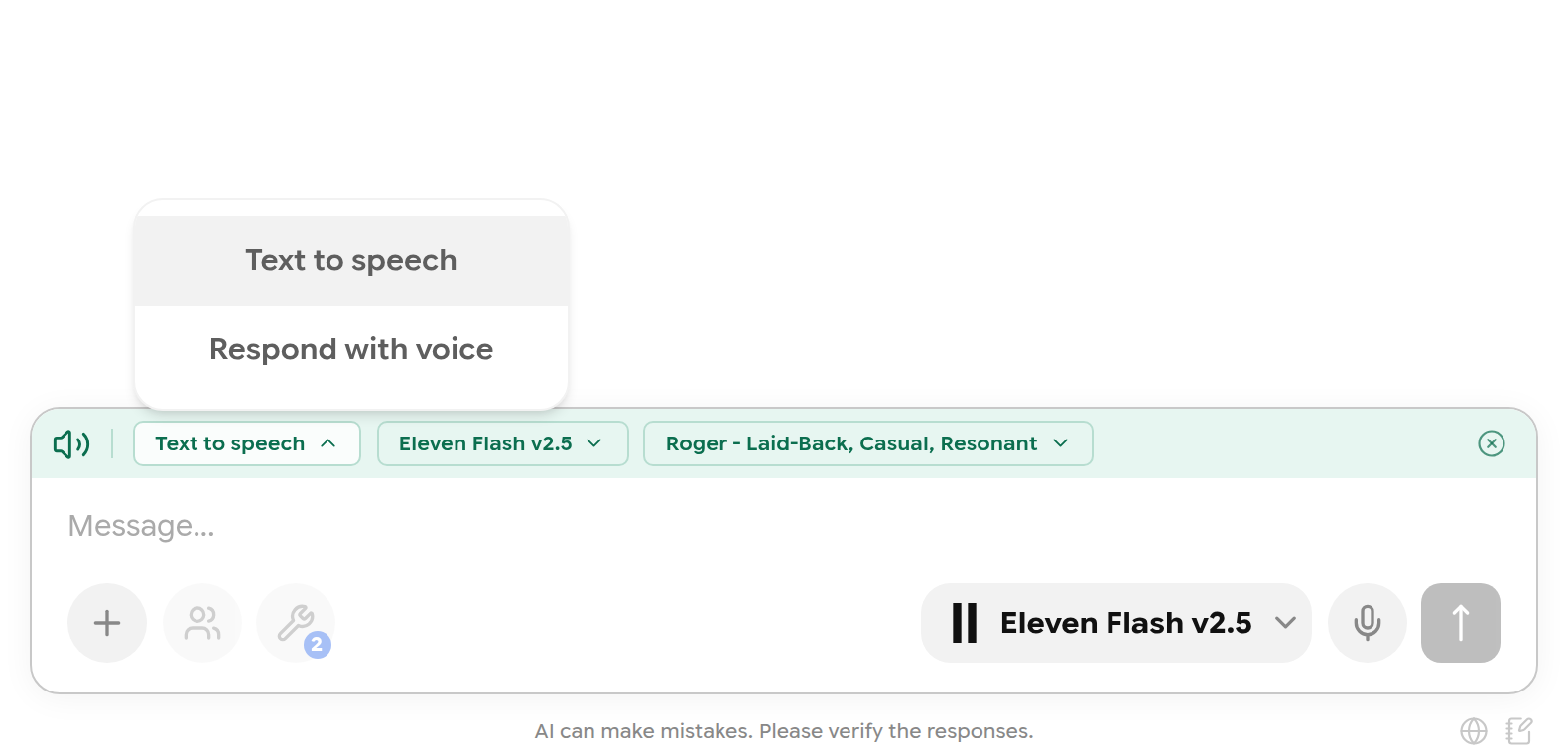
Choosing a voice mode.
| Mode | What happens |
|---|---|
| Text to speech | Reads aloud exactly what you type. There is no AI answer |
| Respond with voice | A normal chat with tools and files. Only the final answer is spoken |
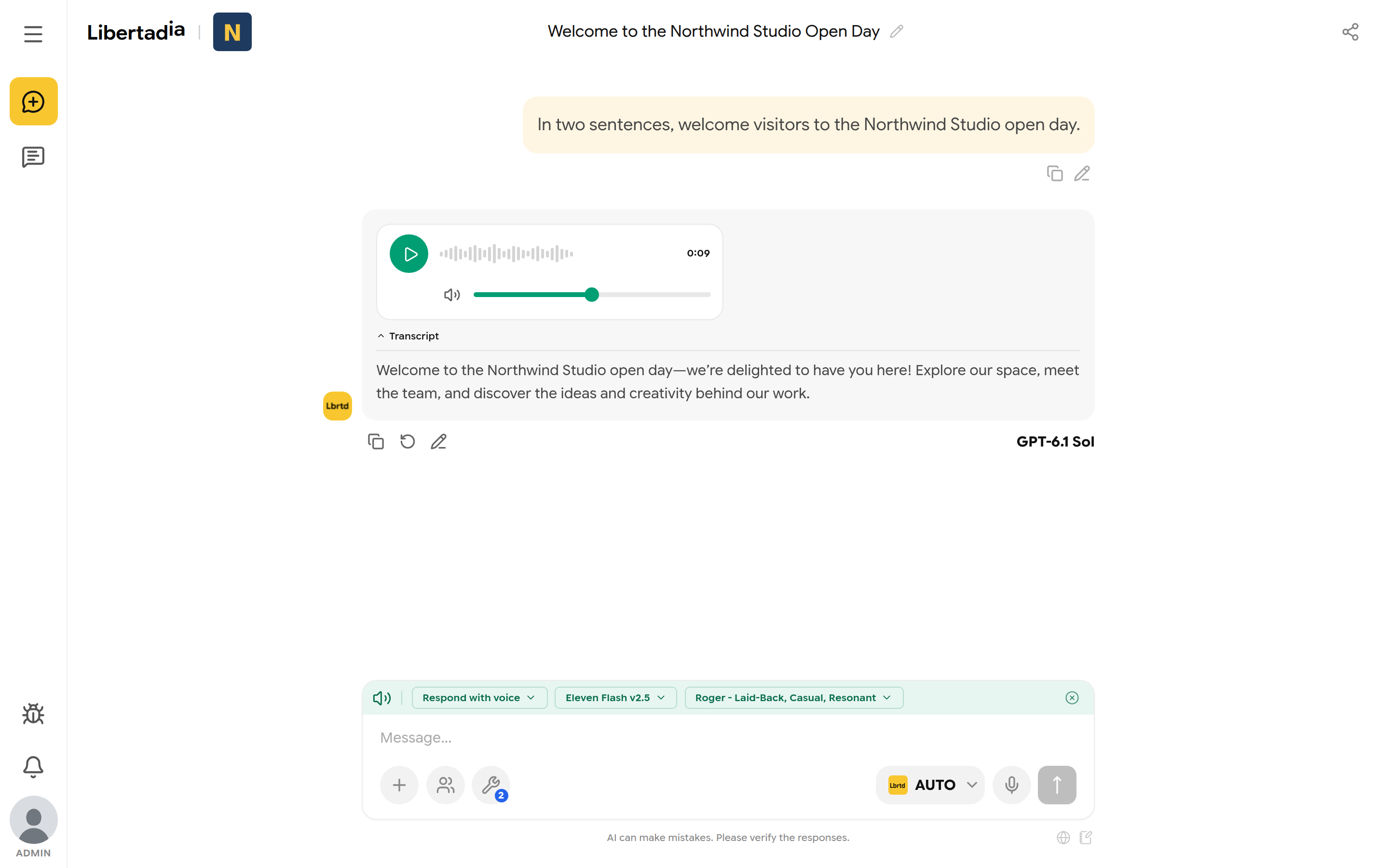
A spoken reply. Click Transcript to read it.
The voice is created in the background, so it keeps going if you reload or open another page. Click the × on the bar (Exit voice mode) to return to normal chat.
Dictation
Click the microphone in the composer to dictate instead of typing. Allow microphone access when your browser asks. If dictation fails, check that a microphone is connected and allowed for the site, or try another browser.