Get started
Getting started
To start, create an account, confirm your email and sign in. A short setup then personalizes Libertadia for you. All of this takes about five minutes.
Cookie preferences
On your first visit, Libertadia asks about cookies. Strictly necessary cookies are always on. Analytics cookies are set only if you accept them.
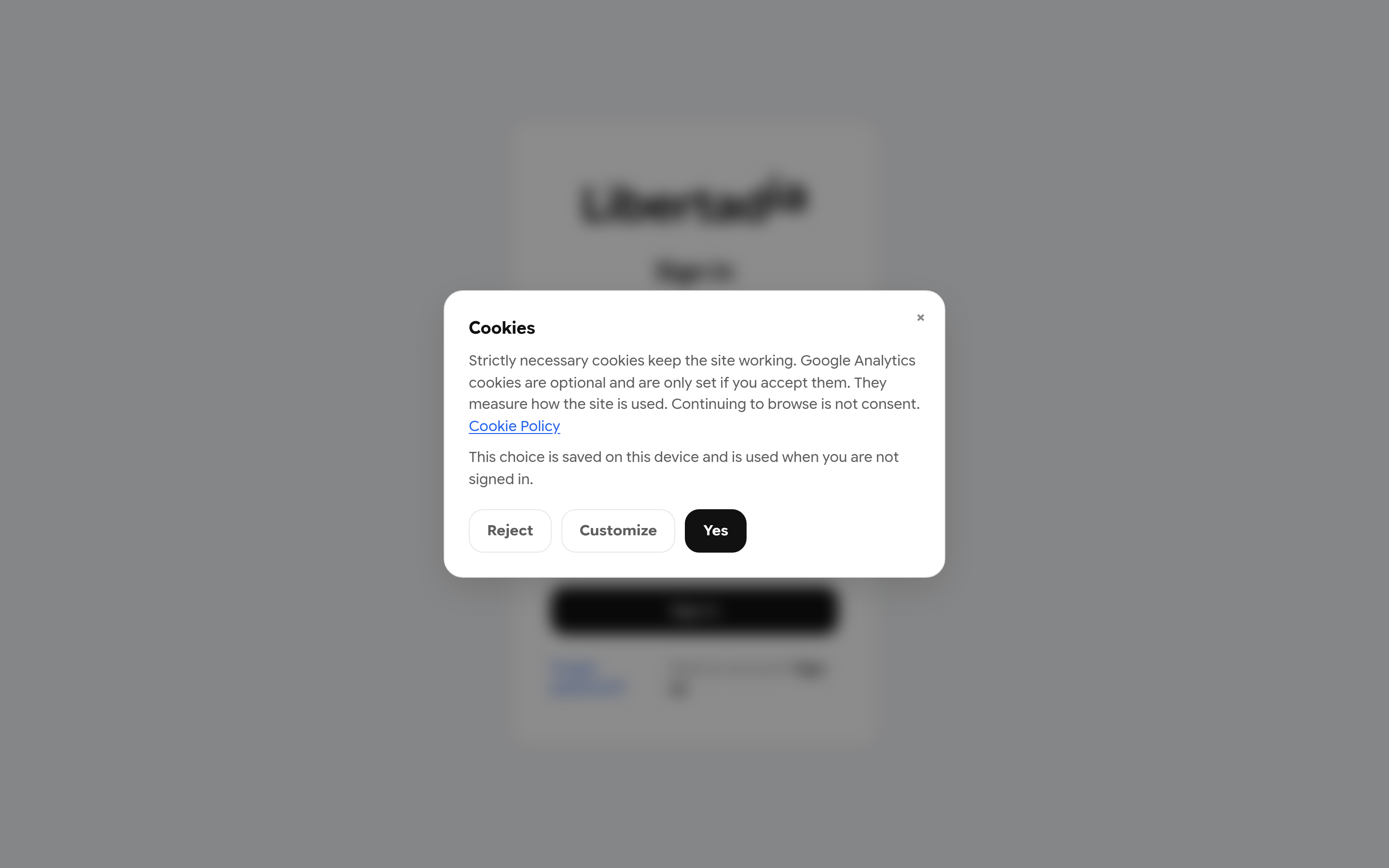
The cookie dialog on first visit.
- Reject keeps only the necessary cookies.
- Customize lets you choose categories.
- Yes accepts all cookies.
You can change your choice later from Cookie Policy → Manage my cookie preferences. When you are signed in, the choice is saved to your account and applies on every device.
Create an account
- Open Libertadia and click Sign up on the sign-in page.
- Enter your Full name, Email and a Password of at least 12 characters, then confirm the password.
- Accept the Terms and Conditions and the AI-use statement. Product emails are optional.
- Click Create account.
- Open the confirmation email and click the link. The link is valid for 24 hours.
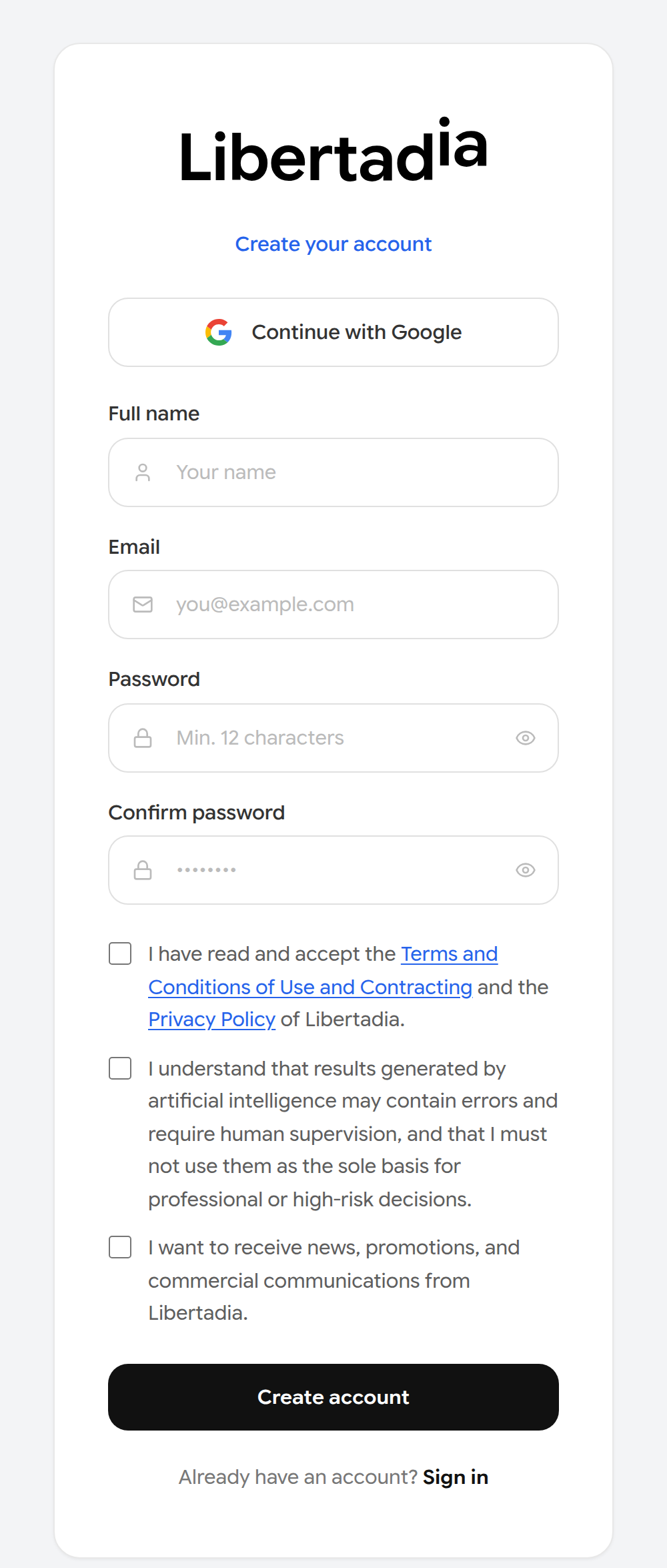
The sign-up form.
You can also click Continue with Google to sign up with a Google account. You can add a password later in Settings so email sign-in also works.
Note: A new account starts on the Demo plan: 3 days with $1 of AI balance.
Sign in
- Enter your email and password, or click Continue with Google.
- Click Sign in.
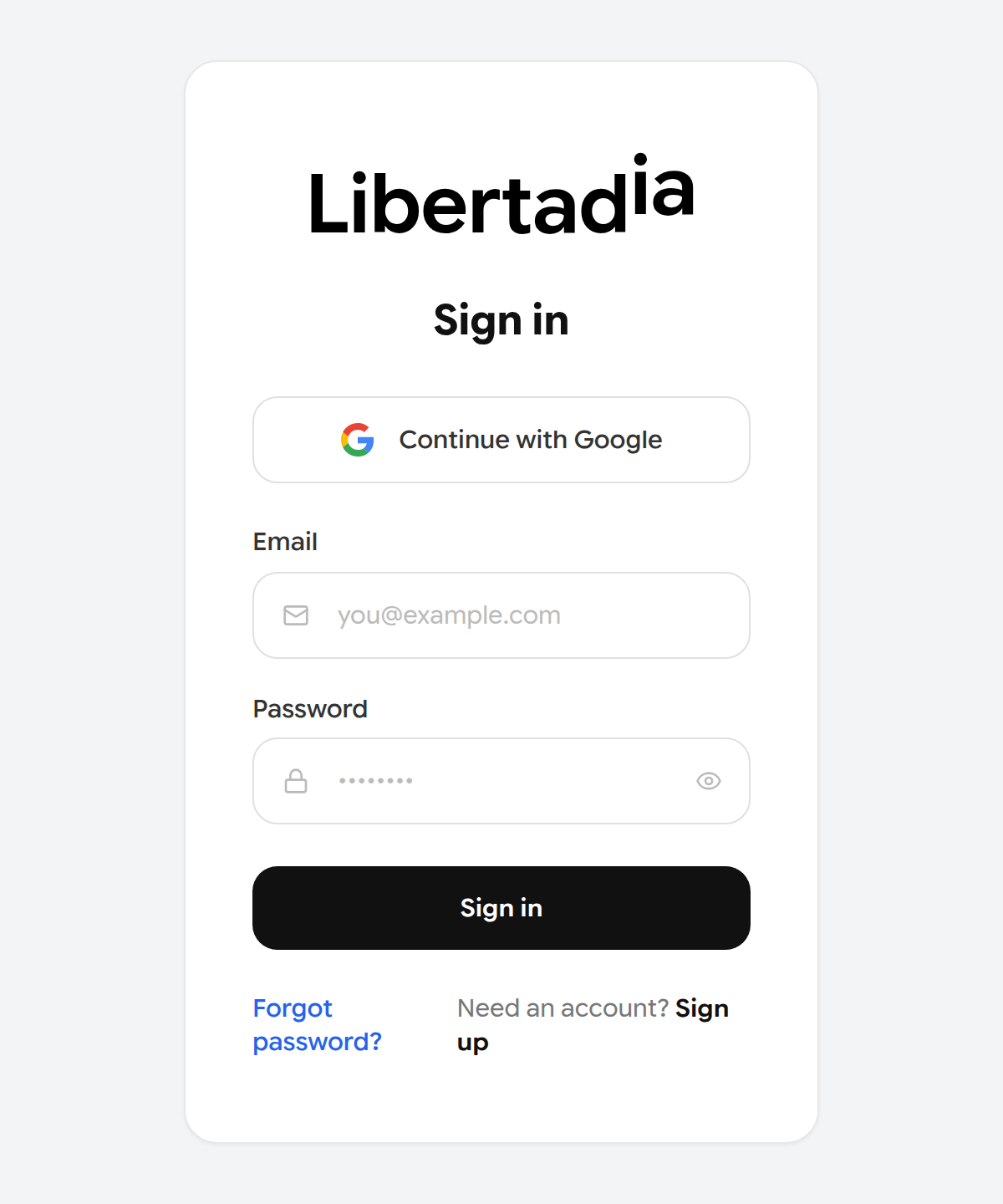
The sign-in page.
If the email or password is wrong, the page shows Invalid credentials. Please try again. Check for typos and that Caps Lock is off, or reset your password.
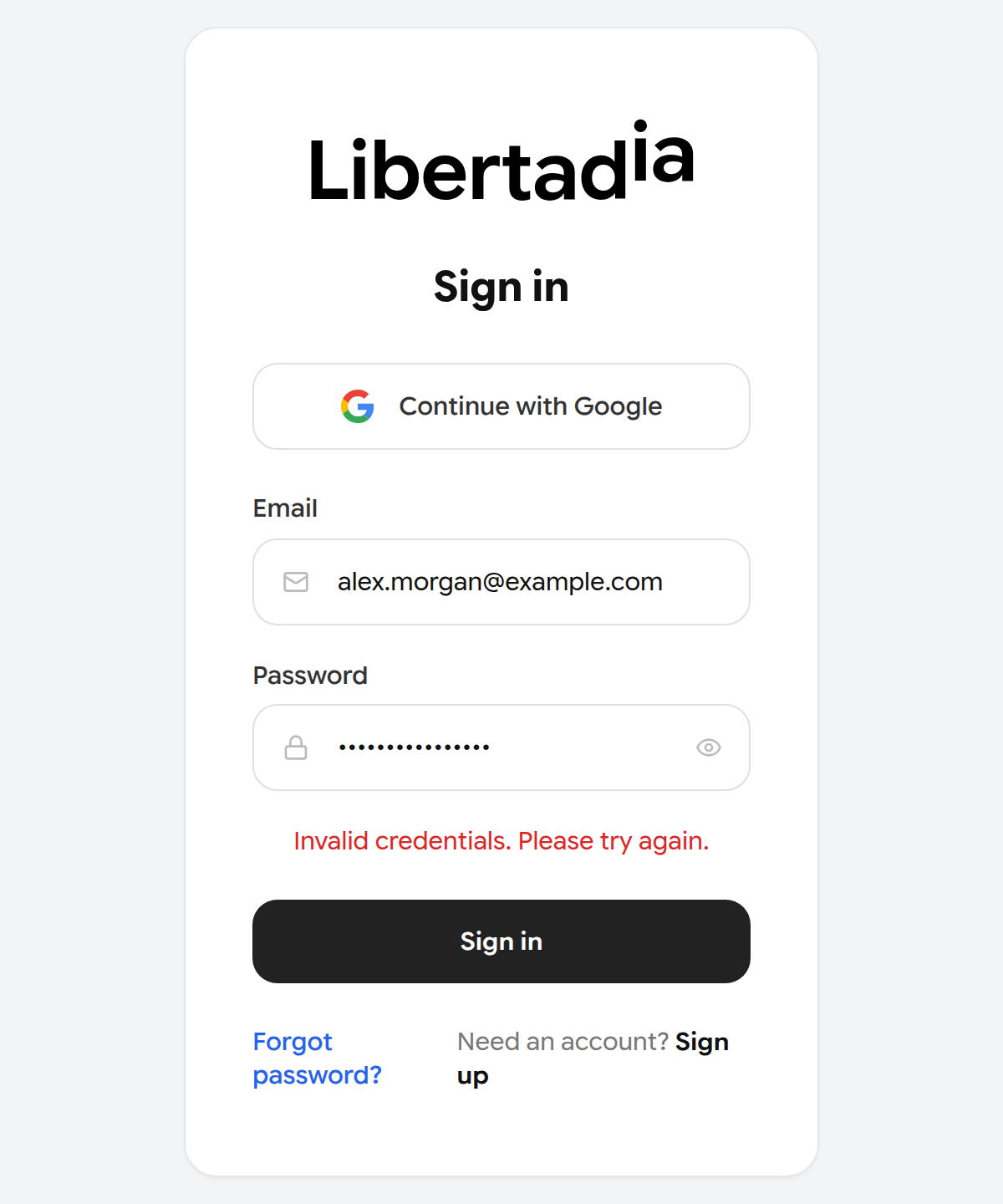
The error shown after a wrong password.
Reset a forgotten password
- On the sign-in page, click Forgot password?
- Enter your account email and click Send reset link.
- Open the email and set a new password of at least 12 characters. The link expires after 1 hour and works once.
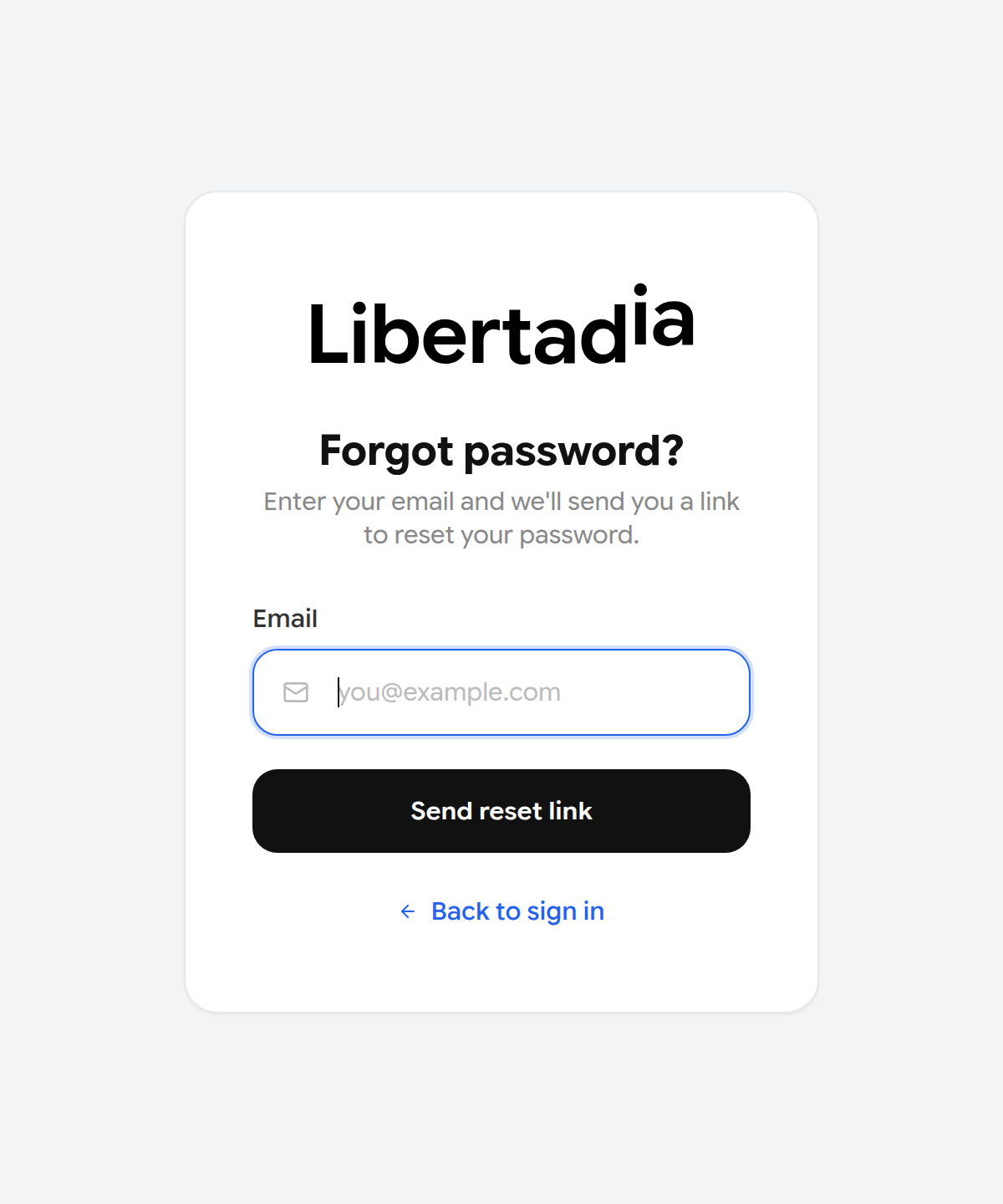
Requesting a password reset link.
Tip: If you are already signed in, use Settings → Password → Forgot your password? instead. You do not need to sign out.
First-time setup
After your first sign-in, a six-step setup opens. You can skip any step with Skip this step and change everything later.
| Step | What you set | Where to change it later |
|---|---|---|
| 1. Set up your profile | Photo (PNG or JPG, up to 5 MB), name, company and role | Settings |
| 2. What will you use Libertadia for? | Personal or Professional use | — |
| 3. Which team are you on? | Your area of work | — |
| 4. Create your Libertadia | Facts Libertadia should remember about you | Chat → Memory |
| 5. How do you want it to communicate? | Detail, style, structure, behaviours to avoid | Memory record How to talk to me |
| 6. Plan | Choose a plan, or Not now | Subscription |
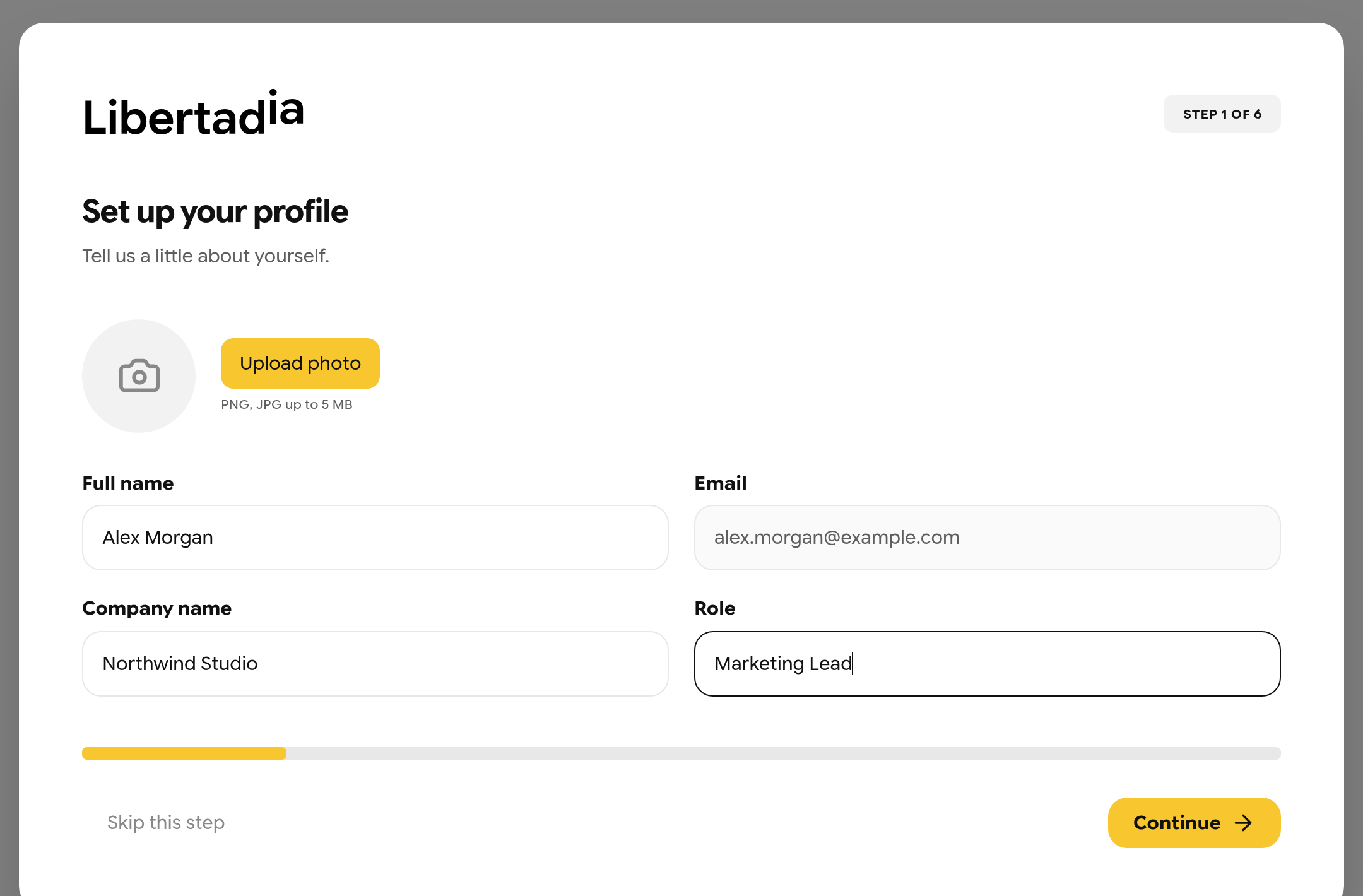
Step 1 — your profile.
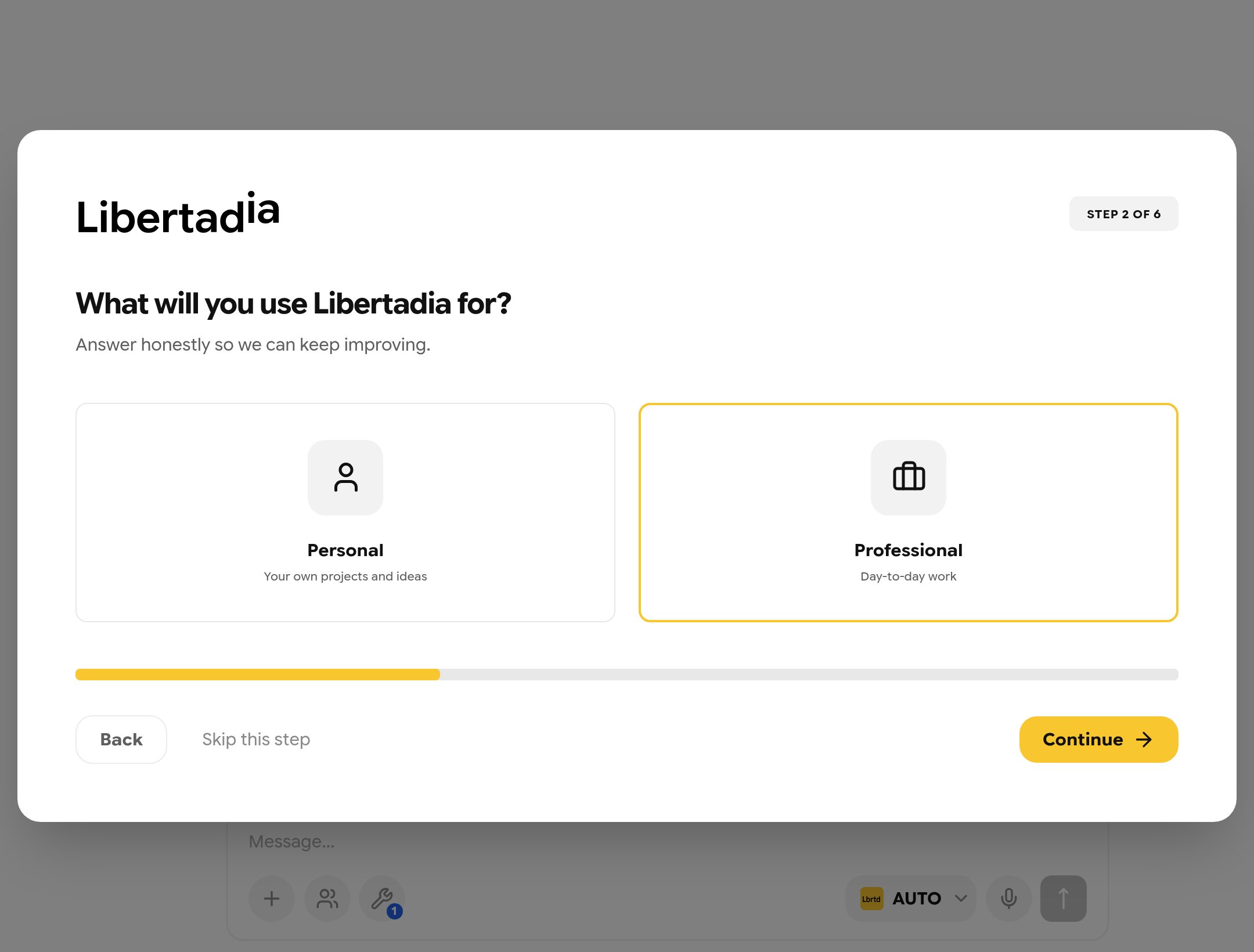
Step 2 — how you will use Libertadia.
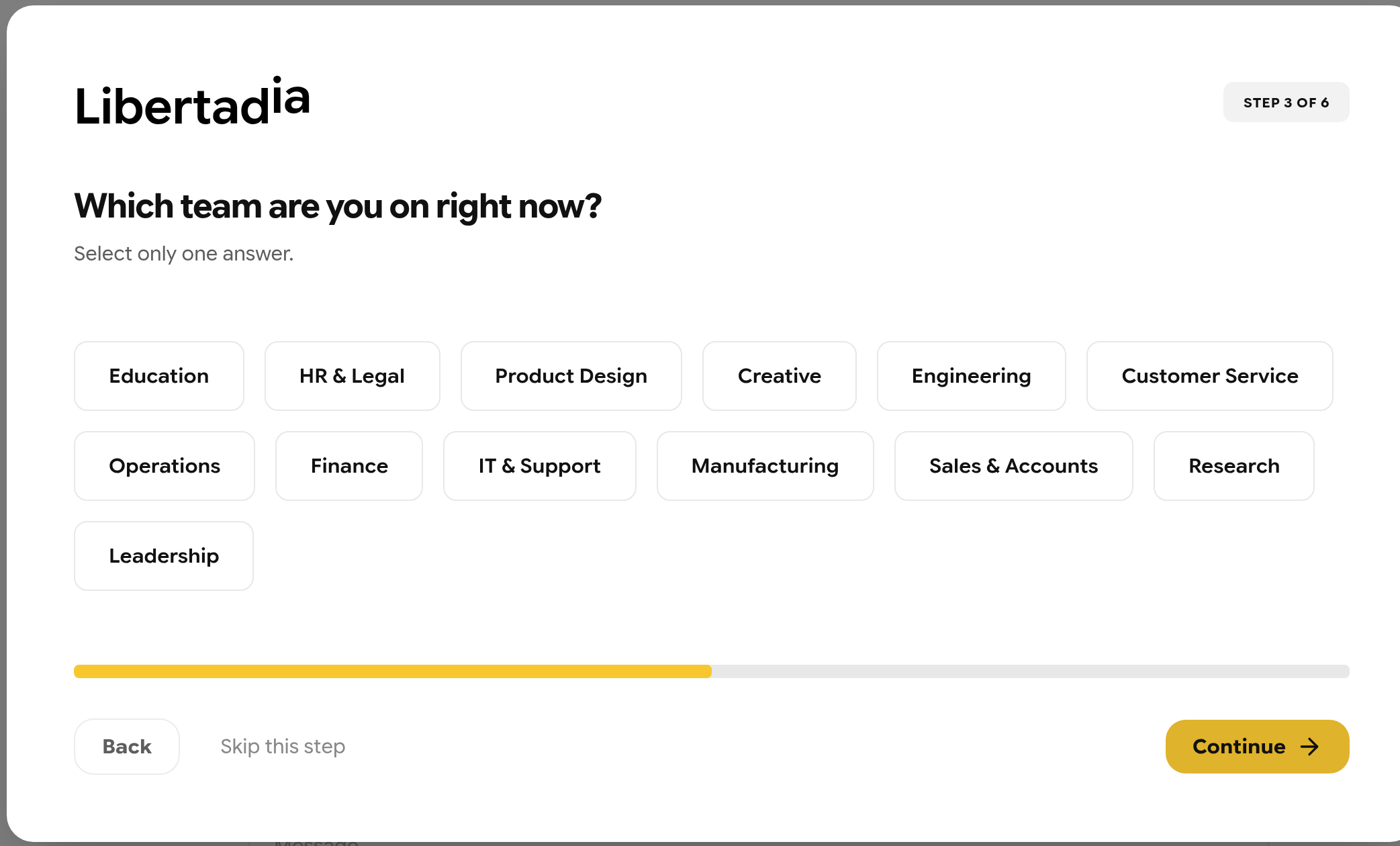
Step 3 — your team.
In step 4 you can type what Libertadia should remember, or bring your memory from ChatGPT, Claude or Gemini. Click Copy next to that assistant, paste the prompt into it, then paste its reply back here.
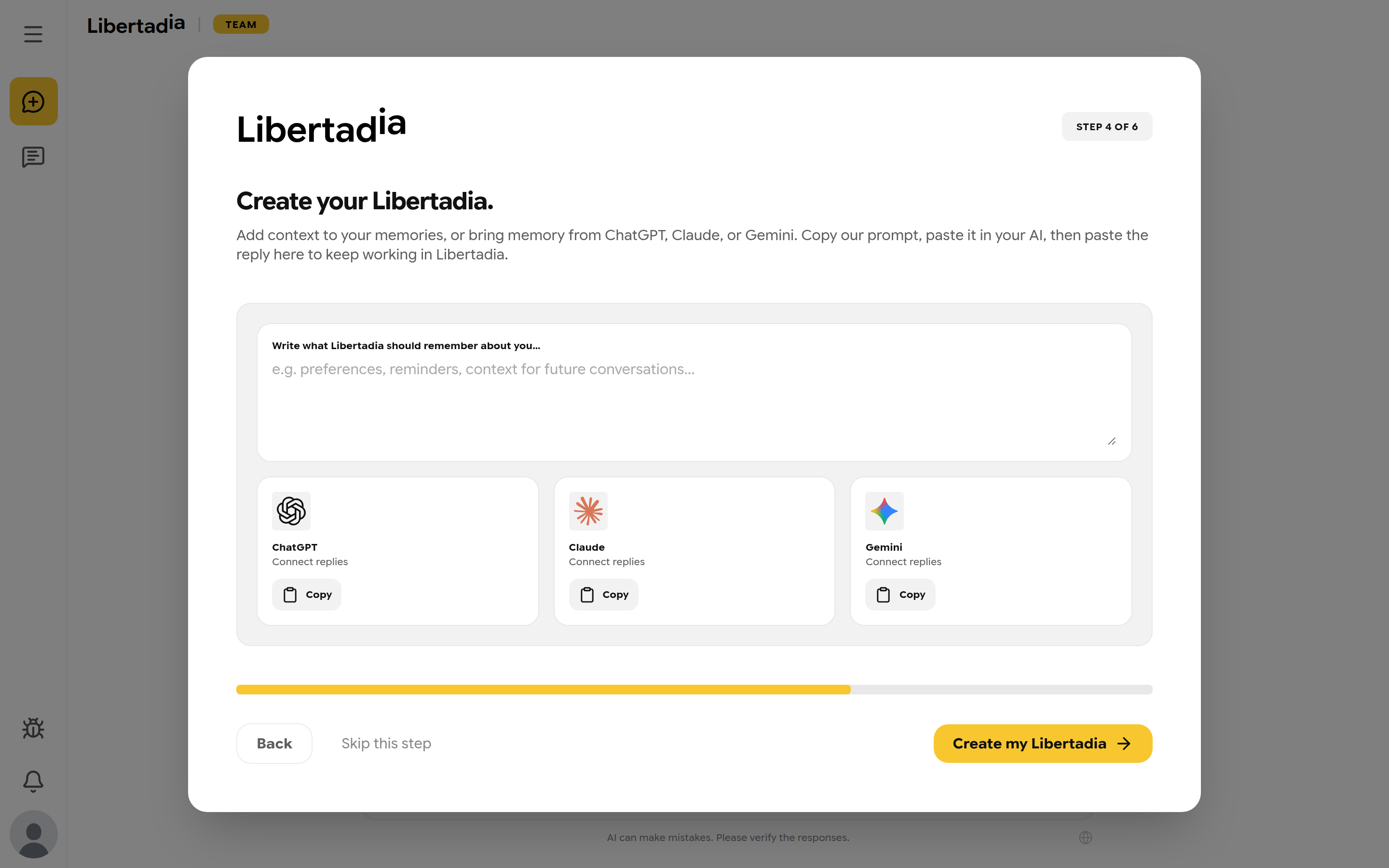
Step 4 — what Libertadia should remember.
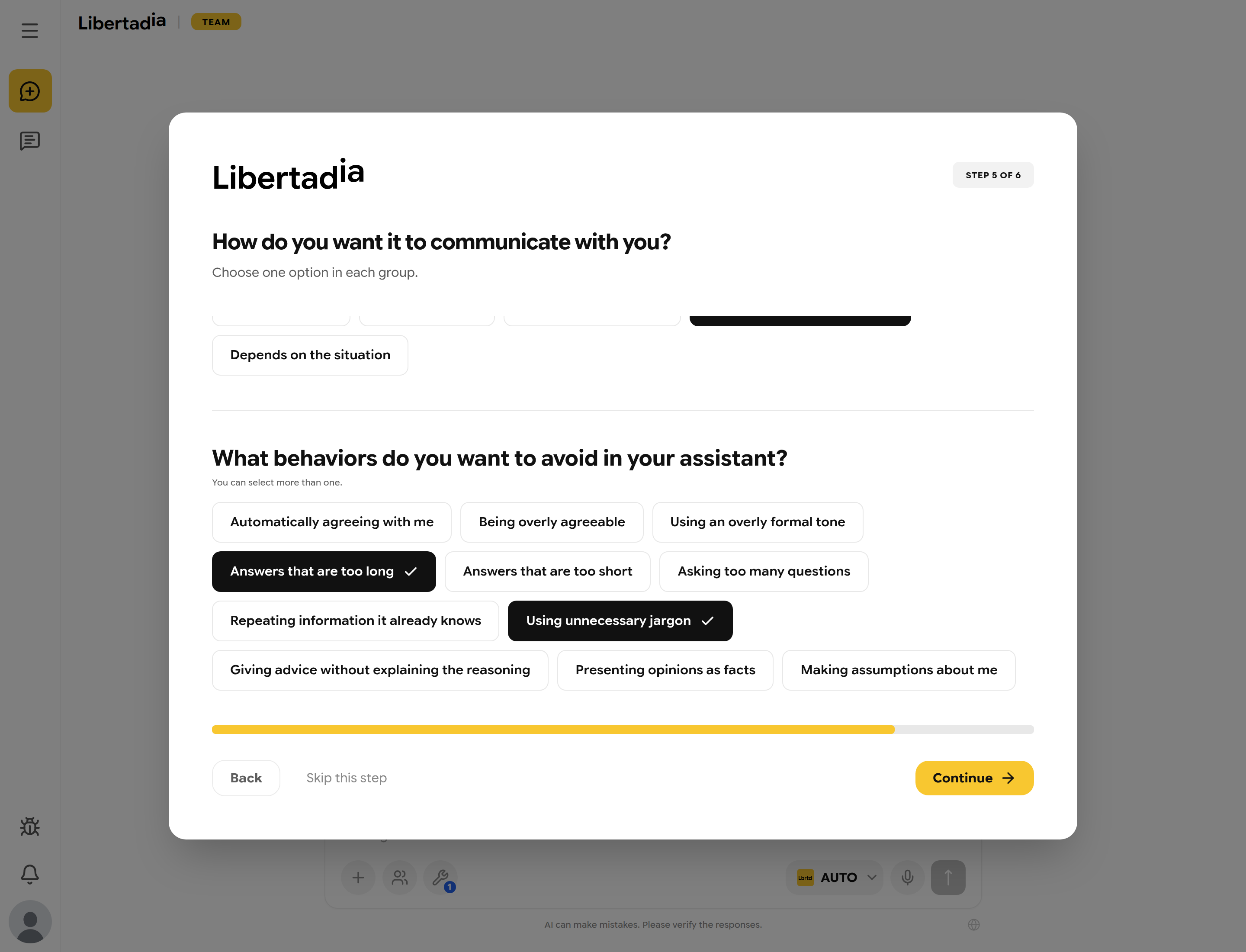
Step 5 — how Libertadia should talk to you.
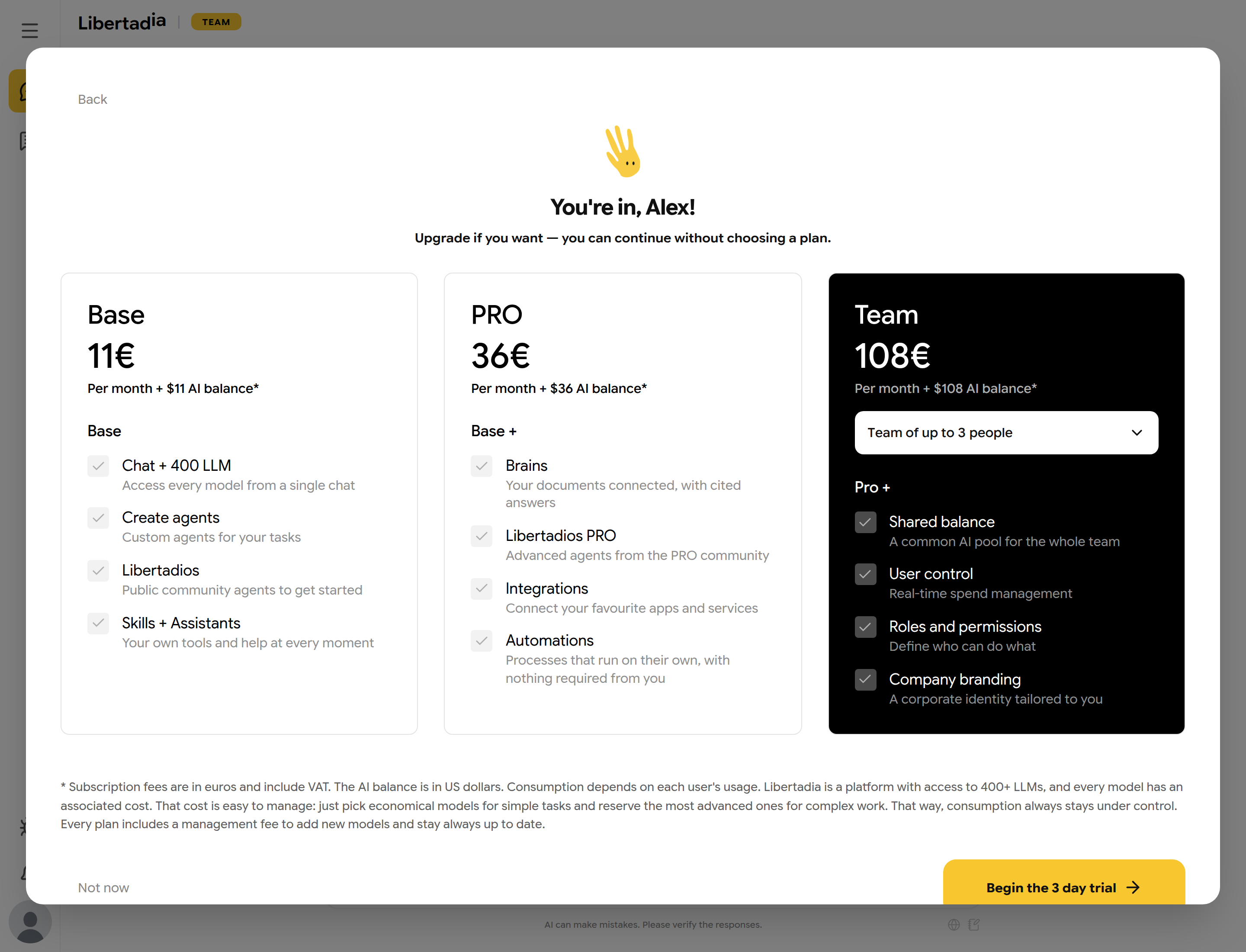
Step 6 — choose a plan, or click Not now.
Note: Some companies add their own short questionnaire for members. When it is ready, you see Continue onboarding.
Join a company
If a company invites you, you receive an email with an invitation link.
- Open the invitation link.
- Sign in, or create an account, with the invited email address. Another address cannot accept the invite.
- Confirm your email if the account is new. You then join the company.
An invitation fails if it has expired, was revoked or already accepted, or the company has no free seats. Ask the company administrator to send a new one.